
Windows 11 Preinstalled Apps You Can Remove: 5 Picks | Uninstall Steps Explained
This article is a translation of our Japanese original, made with the help of AI.
The video this article is based on
The video is in Japanese.
Chapters (tap to play from that scene)
- 0:19Is it OK to remove preinstalled apps?
- 1:15Using Copilot in a browser may be enough
- 2:58Concerns about the new Outlook and alternative email apps
- 5:25Use VLC instead of Media Player
- 6:51Sticky Notes or Notepad can replace Microsoft To Do
- 7:59Clipchamp falls short for serious video editing
- 9:48Precautions before removing apps and basic uninstall steps
- 11:12Tips for actually removing the five apps
- 12:44How to install VLC
- 14:14If you need a removed app later
A new Windows 11 PC comes with many apps already installed. However, not all of them are necessary for everyone.
In this article, we introduce five apps you can consider removing if you don't use them, from a PC repair shop's point of view. We also cover alternatives to each app and the steps to actually uninstall (remove) them.
Is it OK to remove preinstalled apps?
Apps that are already installed when you buy a PC are called preinstalled apps. Some are useful, but others aren't necessarily needed by everyone.
This time, we picked five apps that we think you can consider removing if you don't use them. These picks are based on the personal judgment of our shop's owner. Please decide whether to remove them based on how you use your PC. There's no need to remove apps you use regularly.
- Copilot
- The new Outlook
- Media Player
- Microsoft To Do
- Clipchamp
Watch this part in the video (starting at 0:19)
Using Copilot in a browser may be enough
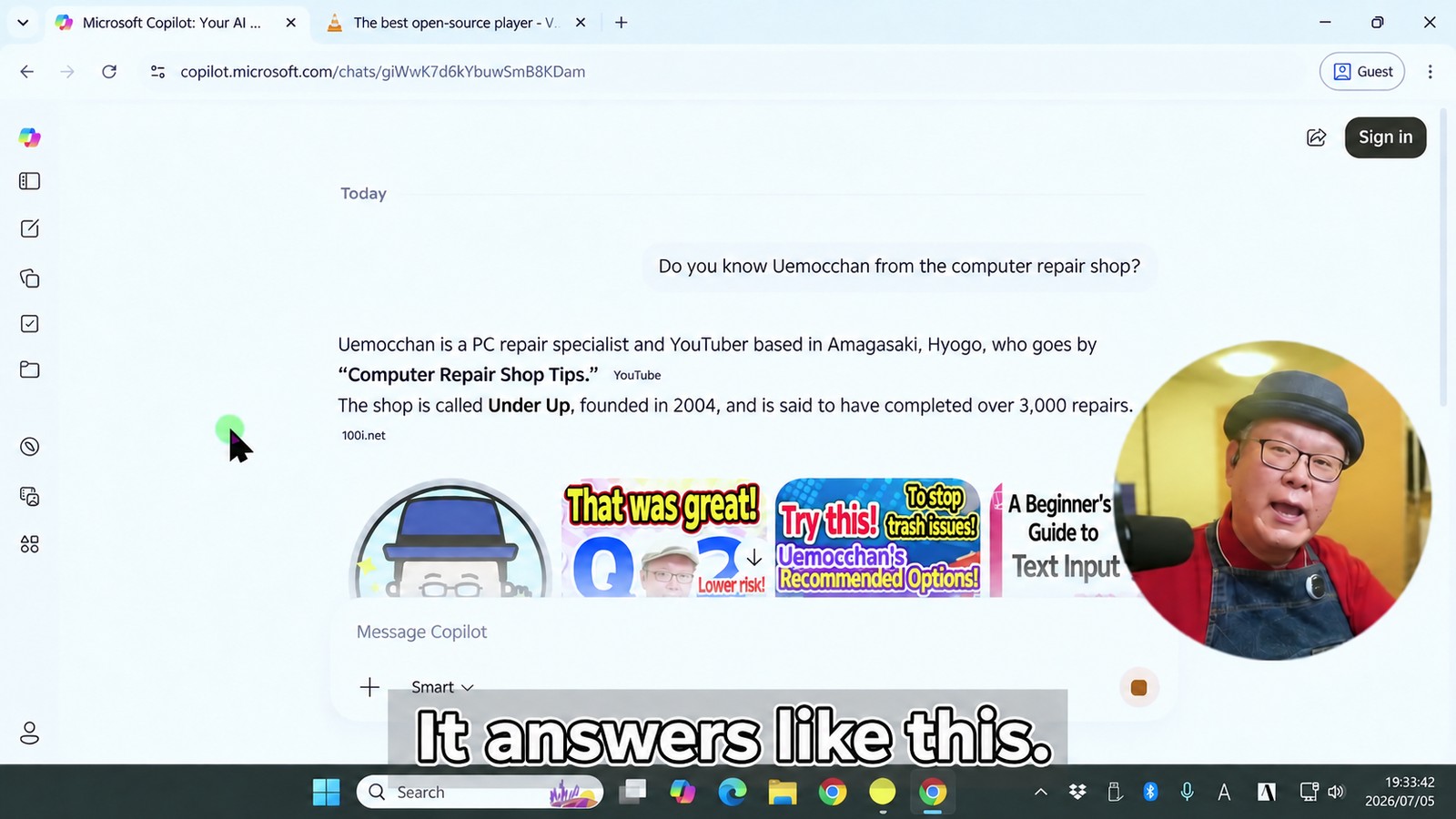
Copilot is Microsoft's AI assistant. Like ChatGPT, it can write text and answer questions. The Copilot icon often appears on the taskbar (the row of icons at the bottom of the screen).
If you don't use it, you may find it annoying just to have the icon always showing. Also, while the app is running, it keeps using memory (the working storage area). On older PCs with limited memory, you'll want to cut down on unnecessary background apps (apps that keep running behind the scenes) as much as possible.
In fact, you can also use Copilot from a web browser. Just type "copilot.microsoft.com" into the address bar to open it. If you only use it occasionally, removing the app and using it in a browser should be enough.
Watch this part in the video (starting at 1:15)
Concerns about the new Outlook and alternative email apps
When people hear "Outlook," many think of email software for work. What we're covering here is not the paid Outlook included with Microsoft 365 and similar plans. It's the free app called "the new Outlook" that comes preinstalled on Windows 11.
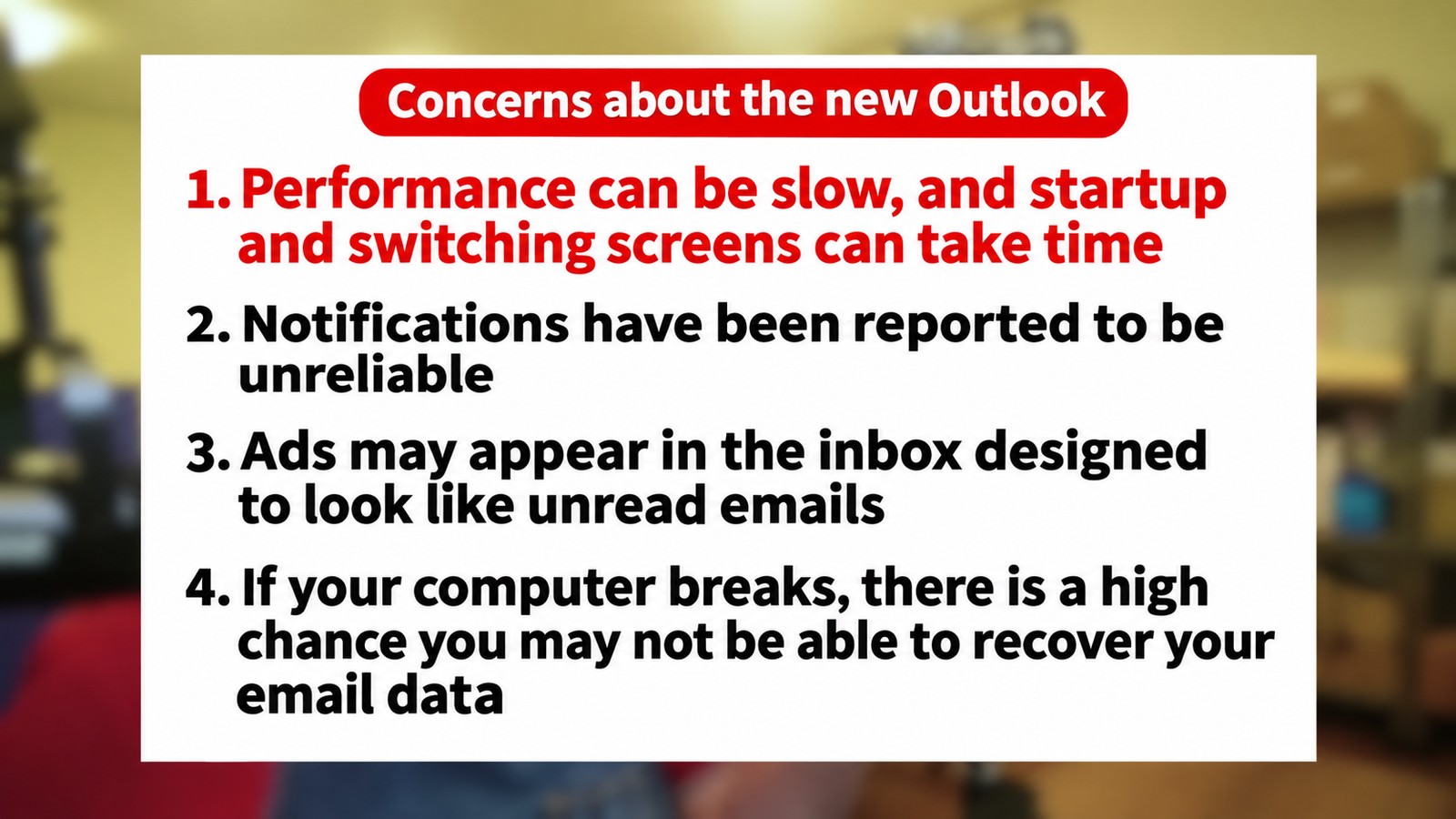
The new Outlook has the following concerns.
- It can be slow, taking time to start up or switch screens
- There are reports that its notifications are unreliable
- Ads that look like unread emails may appear in the inbox
- Emails stored only on the PC may be impossible to recover if the PC breaks down
The ads are especially bothersome. It's not a pleasant experience to try to read an email only to realize it's an ad.
If you manage an Outlook.com email address or Gmail with this app and you like it, there's no need to remove it. If you rarely use it or find it hard to use, you might consider removing it. As an alternative email app, there's "Thunderbird," which is free and ad-free.
Watch this part in the video (starting at 2:58)
Use VLC instead of Media Player
Media Player is the standard Windows 11 app for playing videos and music. It can play media, but its features are quite basic. There are also quite a few video and audio formats that Media Player can't open.
Instead, we recommend a free media player called "VLC." VLC has the following features.
- Supports many video and audio formats out of the box
- Starts up quickly
- Can also stream, convert formats, and extract audio
- Ad-free, completely free, open-source (its source code is publicly available) app
With VLC installed, you shouldn't have trouble playing most videos and music even after removing Media Player. VLC can be downloaded for free from its official website.
Watch this part in the video (starting at 5:25)
Sticky Notes or Notepad can replace Microsoft To Do
Microsoft To Do is an app for managing your to-dos and tasks. The features themselves aren't bad. However, it has a lot of settings and items to manage, and many people seem to feel they don't need that level of management.
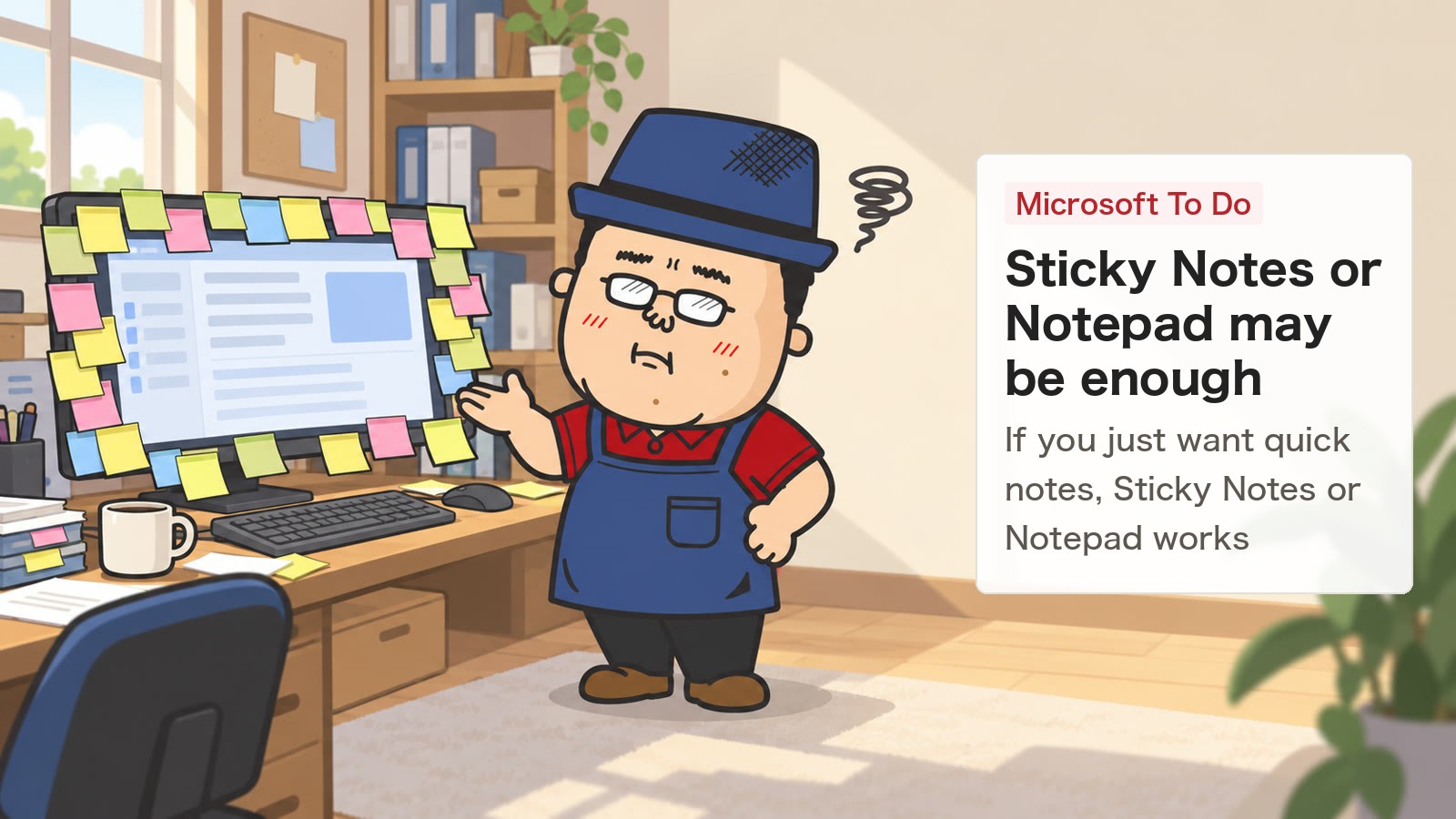
It's a handy app when used together with Outlook or Microsoft 365, but if you don't use those much, you'll likely find it more than you need. If you just want to jot down your to-dos, the "Sticky Notes" (付箋) and "Notepad" (メモ帳) apps that come with Windows are enough.
Watch this part in the video (starting at 6:51)
Clipchamp falls short for serious video editing
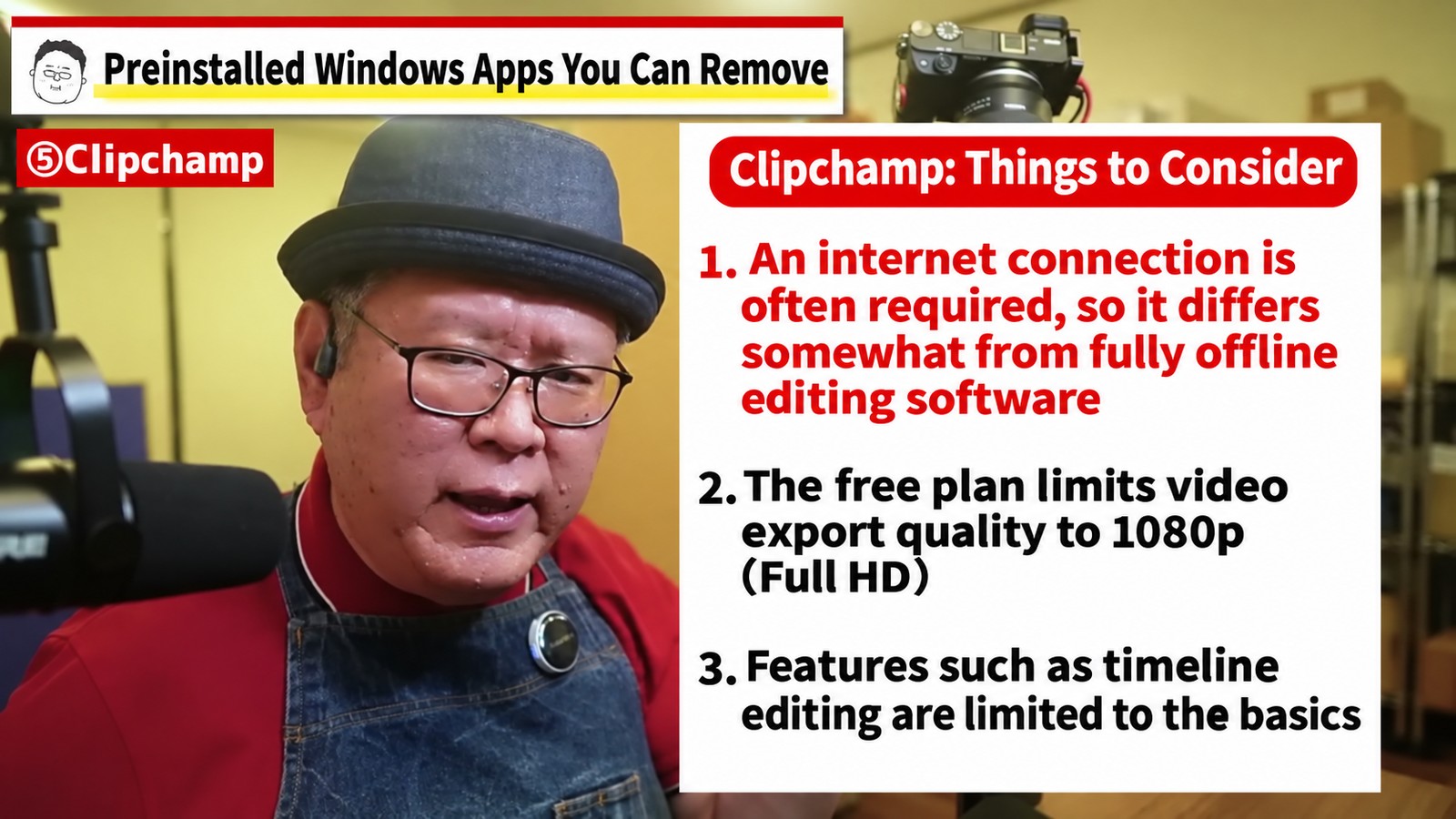
Clipchamp is a video editing app that comes preinstalled on Windows. For people who want to try making a few videos for free, it's an easy app to start with. However, if you use it as your main editor, the following concerns come up.
- It often requires an internet connection, so it's not quite a fully offline app
- On the free tier, video export quality is limited to 1080p
- Features such as timeline editing are limited to the basics
If you want to do serious video editing, we think it's better to learn on a more well-known editing app from the start. If you don't edit videos at all, you don't need this app, so you may want to consider removing it. If you already use it and like it, feel free to keep using it.
Watch this part in the video (starting at 7:59)
Precautions before removing apps and basic uninstall steps
On a PC shared with coworkers or family members, be sure to check before removing an app that no one else is using it. On a work PC, the administrator may have set the app up as required. Don't remove it on your own; check with your administrator first.
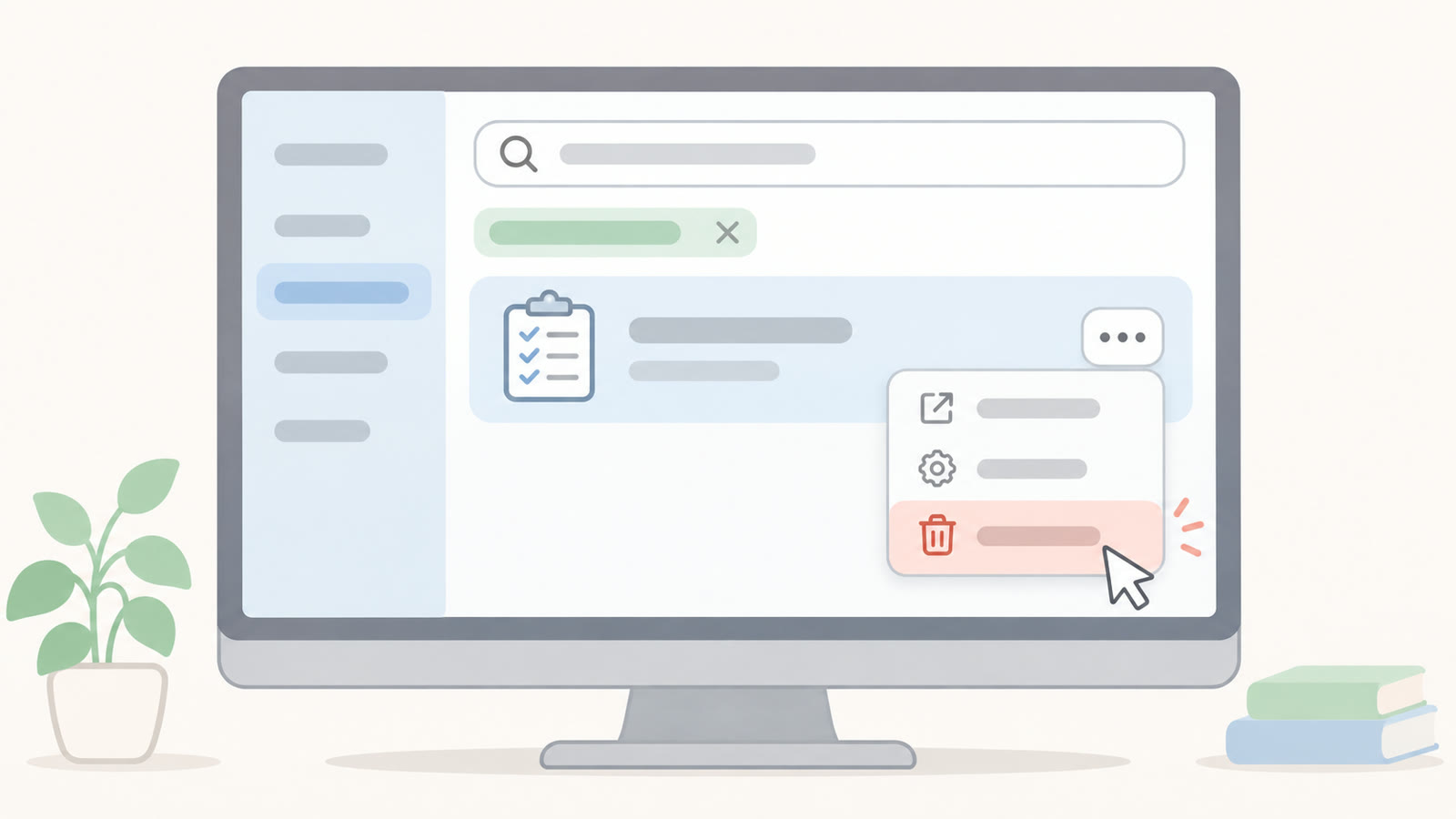
On a personal PC, you can remove apps with the following steps.
- Right-click the Start button and click "Installed apps" (インストールされているアプリ)
- In the "Search apps" (アプリの検索) box at the top, type the name of the app you want to remove
- Click the "…" (three dots) to the right of the app that appears, then click "Uninstall" (アンインストール)
- Click the "Uninstall" (アンインストール) button again
Once the app disappears from the list, the uninstall is complete.
Watch this part in the video (starting at 9:48)
Tips for actually removing the five apps
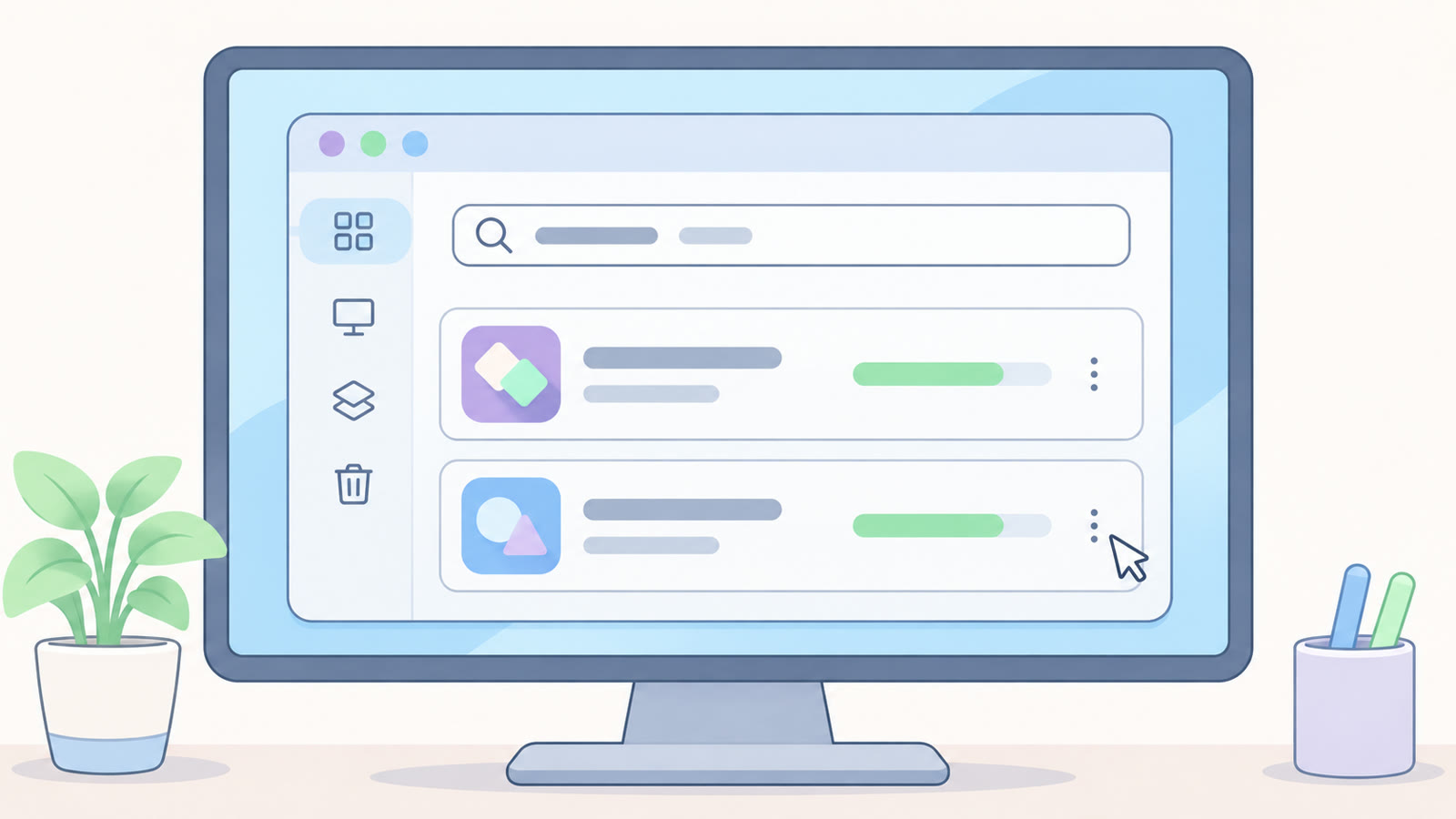
Here's how to search for each app and what to watch out for.
- Copilot: Searching for "Copilot" turned up two results. The regular Copilot was using 2.6GB of storage. If you don't use Microsoft 365 Copilot, you can remove it the same way
- The new Outlook: Search for "Outlook" and remove the one shown as "Outlook (new)"
- Media Player: On Japanese Windows, typing "メディア" ("media" in katakana) will find it
- Clipchamp: Searching for "Clipchamp" will find "Microsoft Clipchamp"
- Microsoft To Do: Same as the example in the basic steps
If you're asked for permission during removal, click "Yes" (はい). If you only want to remove the Copilot icon from the taskbar, right-click the icon and click "Unpin from taskbar" (タスクバーからピン留めを外す). With this method, the app itself remains on your PC.
Watch this part in the video (starting at 11:12)
How to install VLC
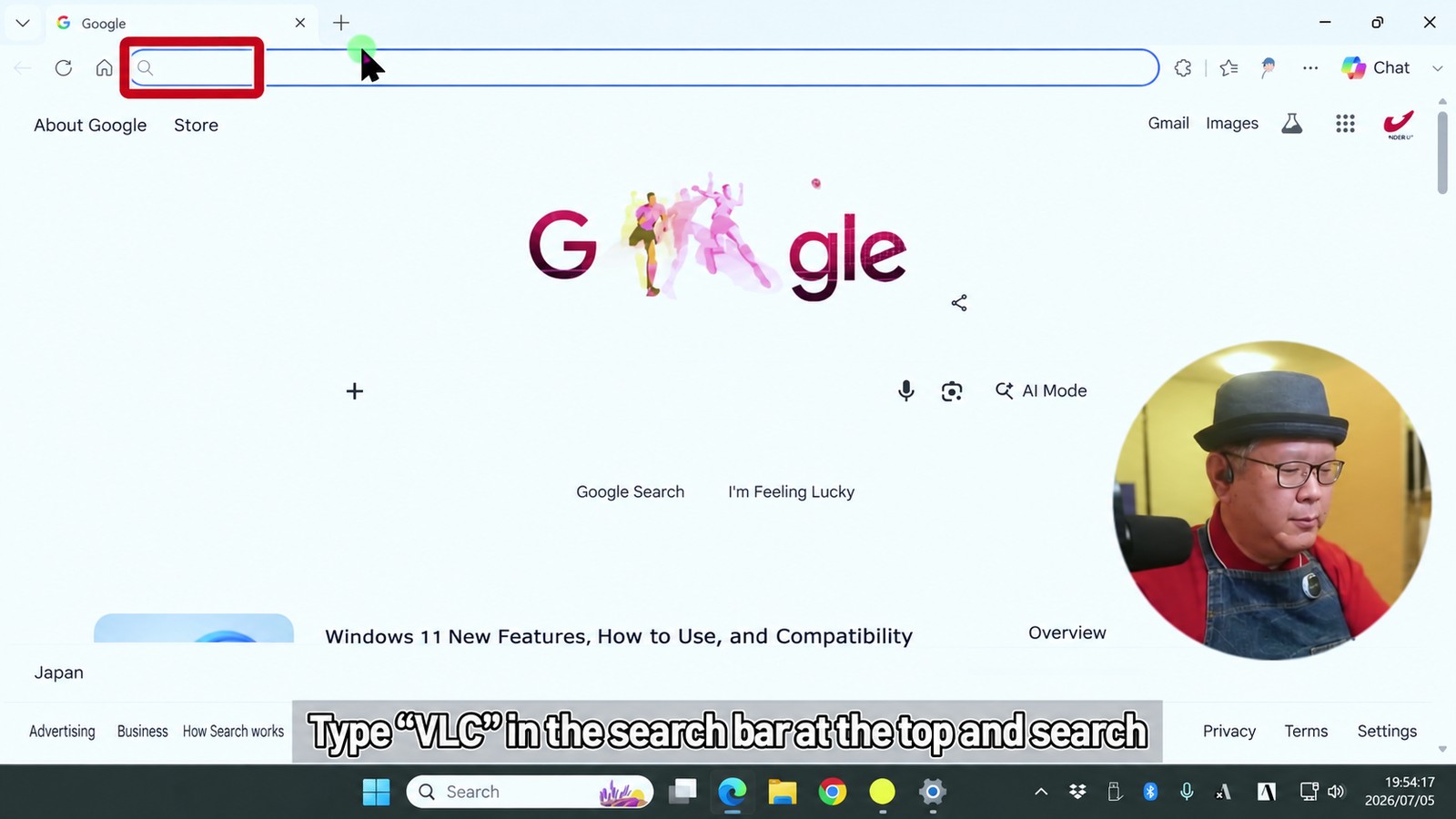
- Open a web browser, type "VLC" into the search box, and search
- Open the official VideoLAN website (https://www.videolan.org/vlc/)
- Click "Download VLC" (ダウンロードVLC) and wait for the download to finish
- Click "Open file" (ファイルを開く), and if asked for permission, click "Yes" (はい)
- When "Welcome to VLC media player Setup" (VLCメディアプレイヤーセットアップへようこそ) appears, click "Next" (次へ) and follow the on-screen instructions
- When the installation is complete, click "Finish" (完了)
On a PC where VLC was installed before, a confirmation screen may appear partway through. Check what it says before continuing.
Watch this part in the video (starting at 12:44)
If you need a removed app later
After removing an app, you may realize you needed it after all. In most cases, you can reinstall it from the Microsoft Store or elsewhere. However, the steps often differ depending on your PC's setup. In that case, search for "[app name] reinstall" to find out how.
Watch this part in the video (starting at 14:14)
Summary
- You can also use Copilot by opening "copilot.microsoft.com" in a web browser
- The new Outlook has concerns such as sluggish performance and ads in the inbox. Thunderbird is an alternative email app
- VLC can replace Media Player, and Sticky Notes or Notepad can replace Microsoft To Do
- Clipchamp is for beginners. If you don't edit videos, you don't need it
- To remove an app, right-click the Start button and go to "Installed apps" (インストールされているアプリ). On a shared PC, check with other users or the administrator first
The five apps covered here are ones you can consider removing if you don't use them. Please decide whether to remove them based on how you use your PC.
Related repair services:Slow performance / speed-up