
YouTube App Tips for Smartphones: 2x Speed, Sleep Timer, and Transcript Search
This article is a translation of our Japanese original, made with the help of AI.
The video this article is based on
The video is in Japanese.
Chapters (tap to play from that scene)
- 0:54Press and hold the screen to play at 2x speed
- 1:37Swipe up or down to switch to full screen
- 2:20Find a song's name by humming or whistling (Android)
- 3:24Spread two fingers to zoom in on details in a video
- 4:27Find the most-watched highlights
- 5:33Change how many seconds a double-tap skips
- 7:12Use the sleep timer to stop playback if you fall asleep
- 8:33Find the scene you want using the transcript
- 10:24A time limit to keep you from watching too many Shorts
- 12:19If ads bother you, consider a paid plan
These days, many people probably watch YouTube on their smartphones more than on their computers. The YouTube app comes with built-in features that make watching videos much more comfortable once you know about them.
In this article, we introduce handy features chosen from the perspective of a computer repair shop, along with the steps to use them. It is useful for anyone who tends to watch YouTube before bed or during breaks. At the end, we also explain how to choose a paid plan for those who want to get rid of ads.
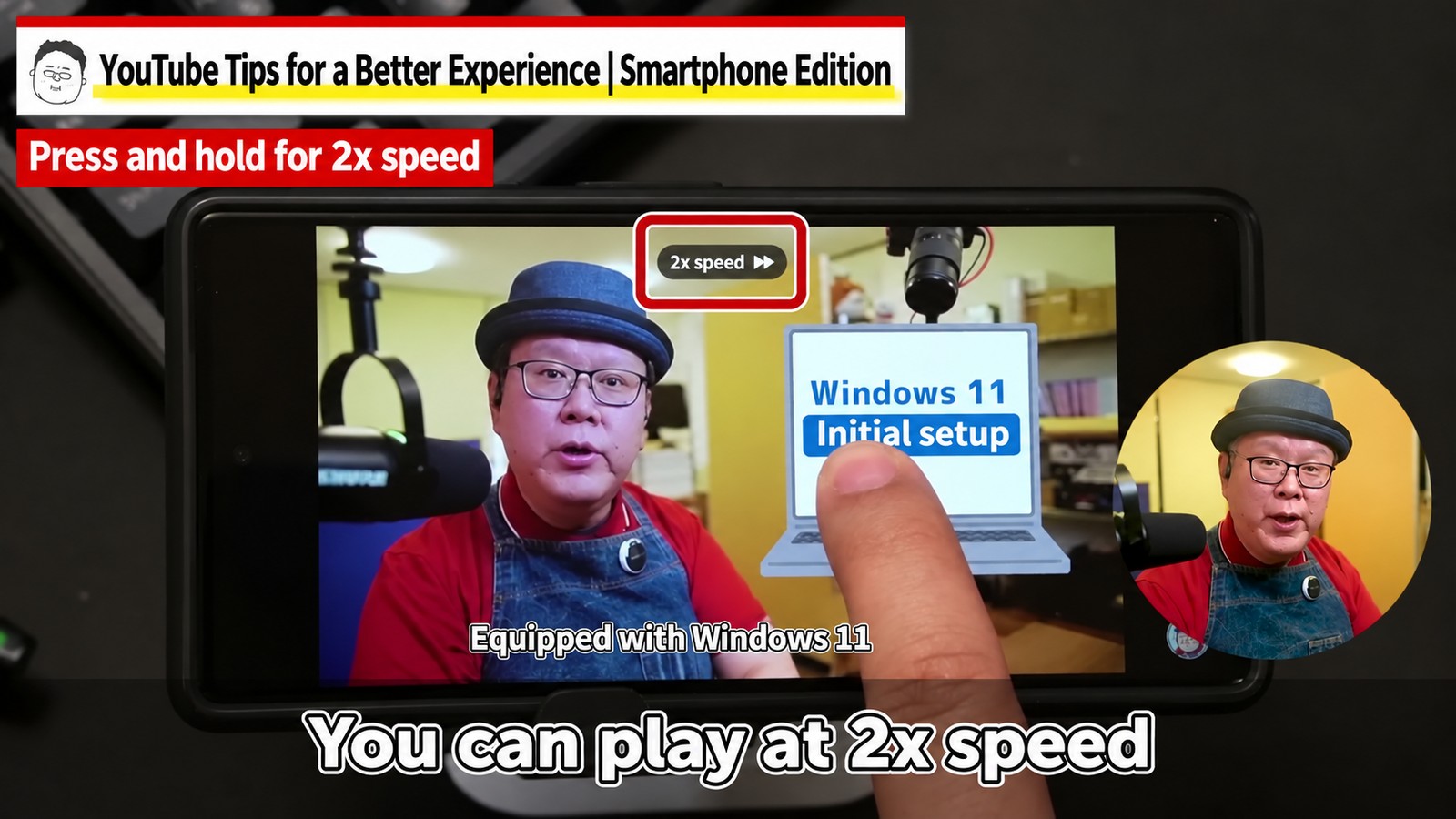
Press and hold the screen to play at 2x speed
The easiest and most useful feature is 2x speed playback. While a video is playing, press and hold the screen to play it at twice the speed for as long as you hold it. When you lift your finger, it returns to the previous playback speed.
You don't need to open any settings. Just press and hold to fast-forward through the boring parts, and lift your finger at the parts you want to watch. Once you try it, you won't want to go without it.
Watch this part in the video (starts at 0:54)
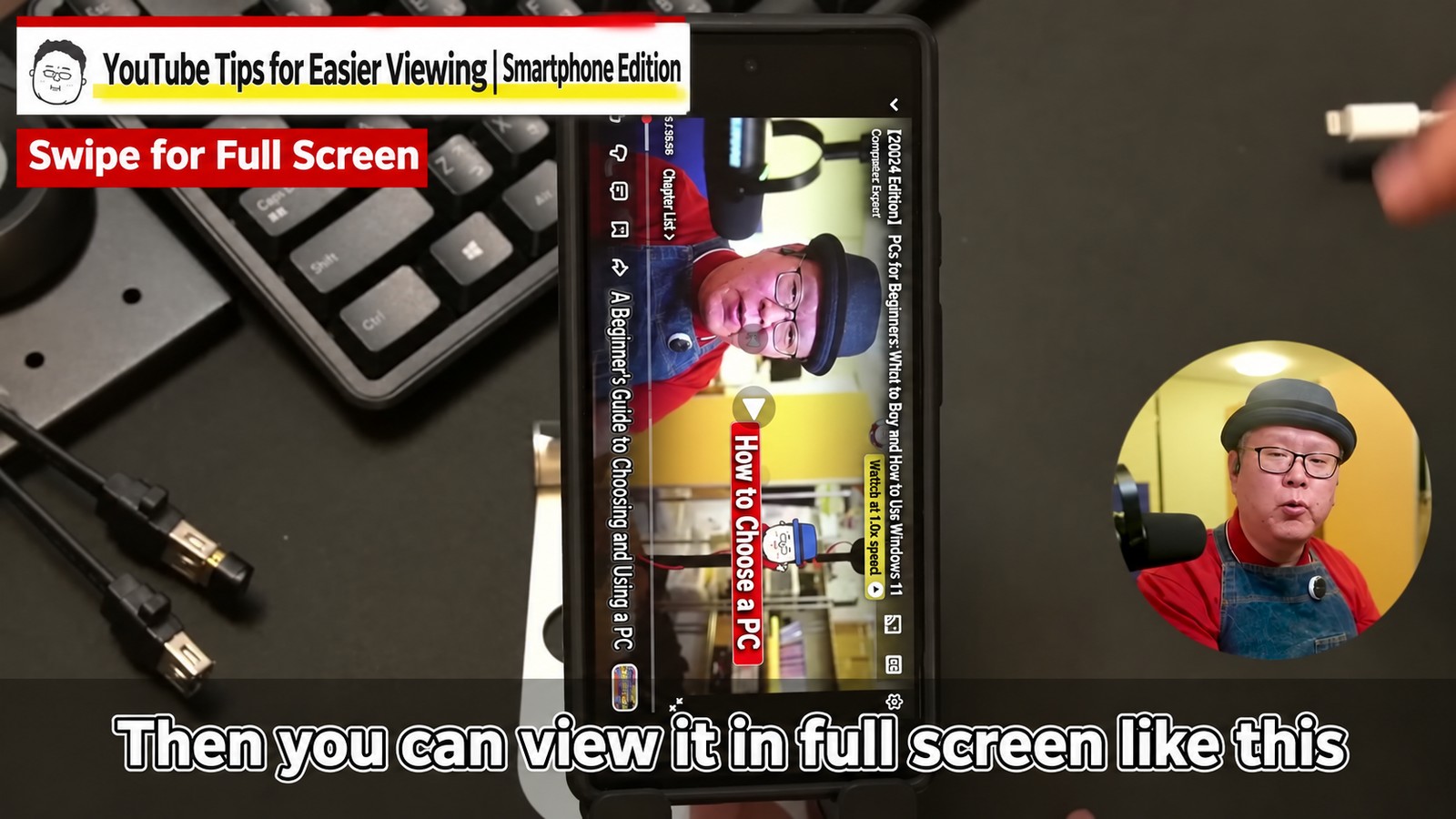
Swipe up or down to switch to full screen
When you want to watch a video in full screen, do you tap the full-screen button in the lower right? This button is small and can be hard to tap.
If you drag (swipe) the video up with your finger, it switches to full screen. Drag it down to return to the normal view. You don't have to aim for a tiny button, so it feels intuitive.
Watch this part in the video (starts at 1:37)
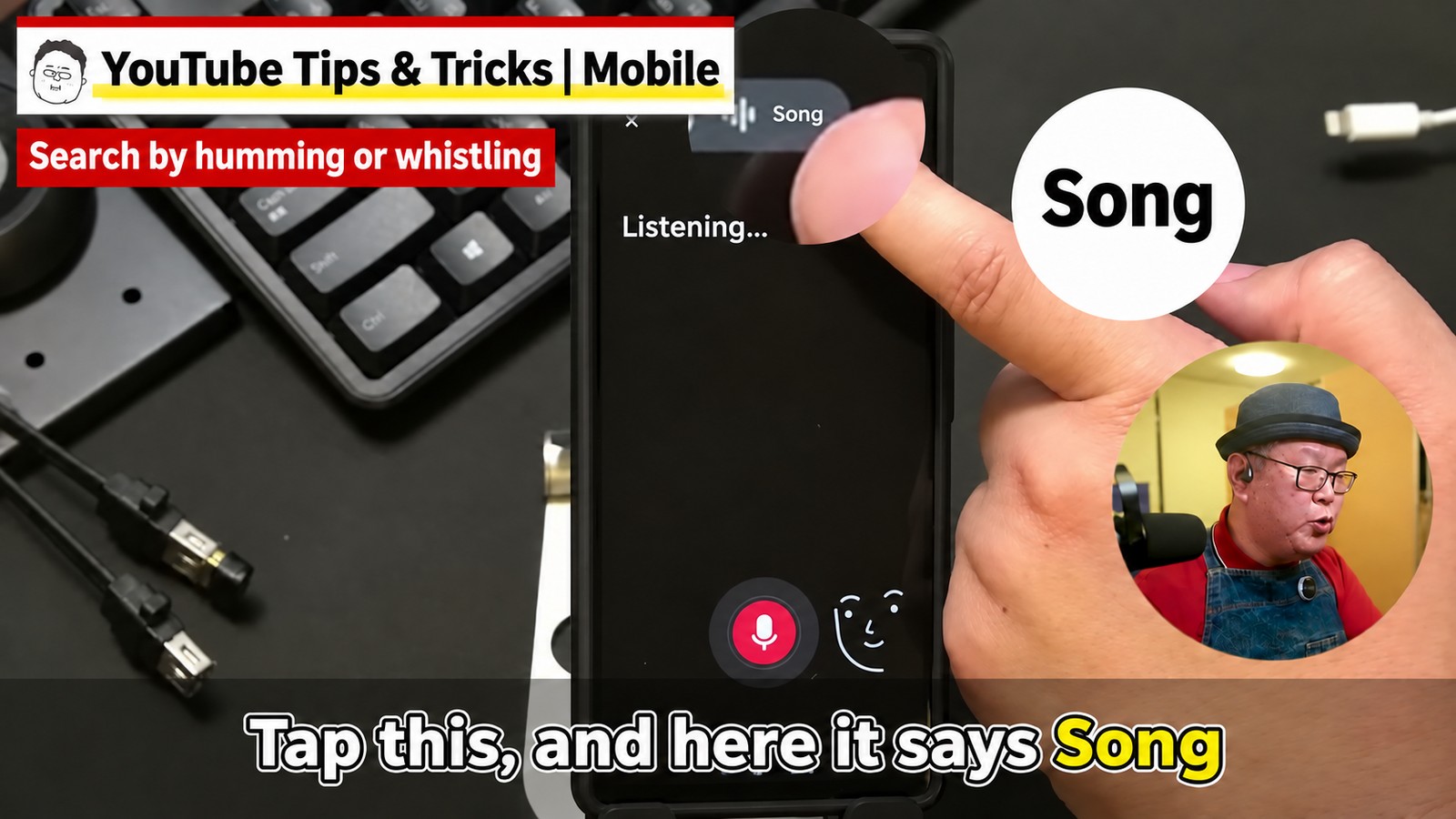
Find a song's name by humming or whistling (Android)
If you remember the melody but not the song's name, you can look it up in the YouTube app. Here are the steps.
- Tap the magnifying glass icon in the upper right.
- Tap the microphone icon.
- Tap "Song" (曲).
- Hum or sing the song you are looking for.
AI finds the song from the melody. A great point is that it recognizes the song even if you are a little off-key. Note that the iPhone app does not seem to support this feature yet. Please keep in mind that it is only available in the Android app.
Watch this part in the video (starts at 2:20)
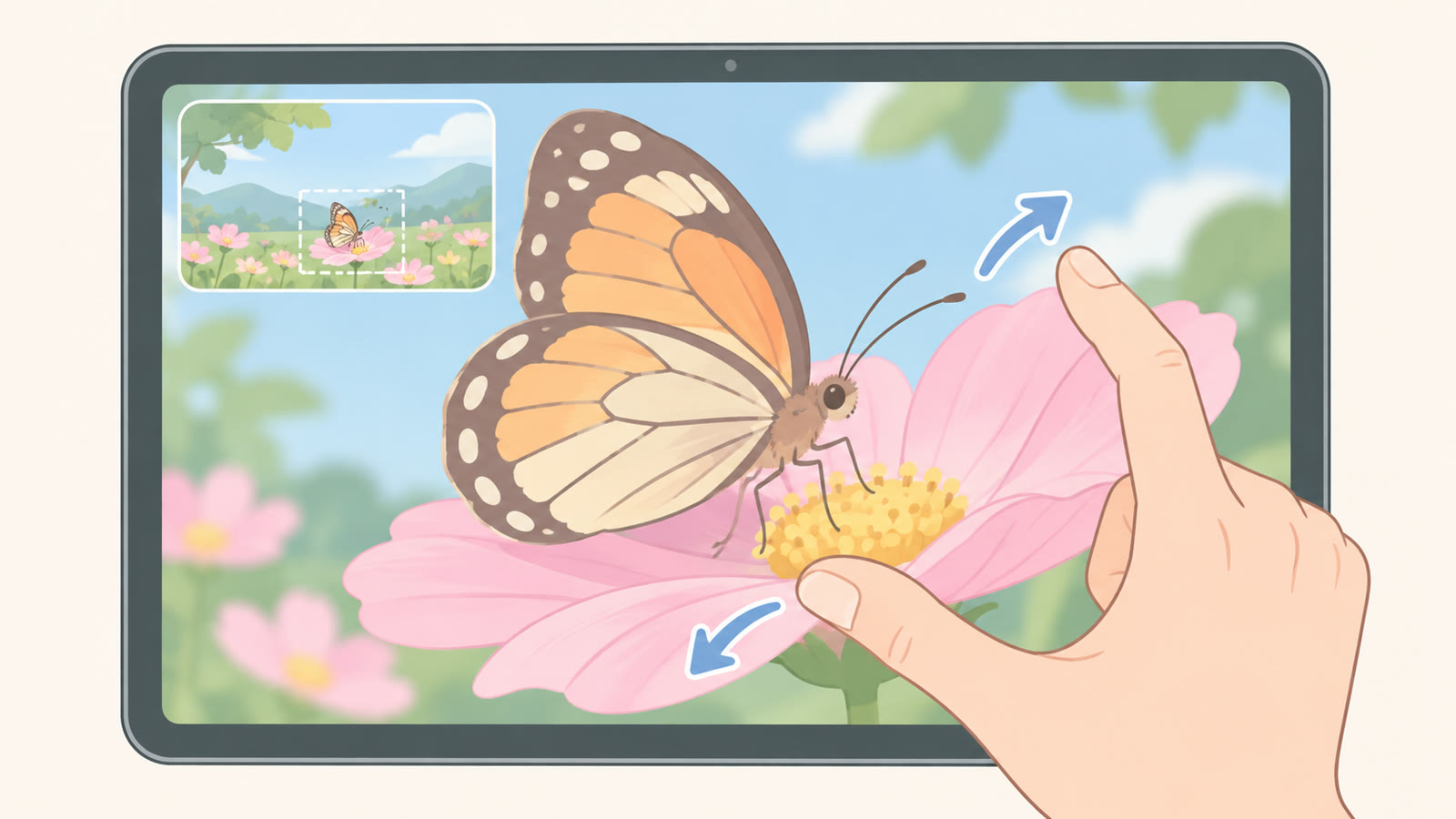
Spread two fingers to zoom in on details in a video
Smartphone screens are small, so sometimes you can't read the text even in full screen. In that case, spread two fingers apart on the screen (pinch out) to zoom in on the video.
The video keeps playing while zoomed in. This is handy when you want to check something in the corner of the screen or read small on-screen captions. To go back, pinch your fingers together and the video returns to its original size.
Watch this part in the video (starts at 3:24)
Find the most-watched highlights
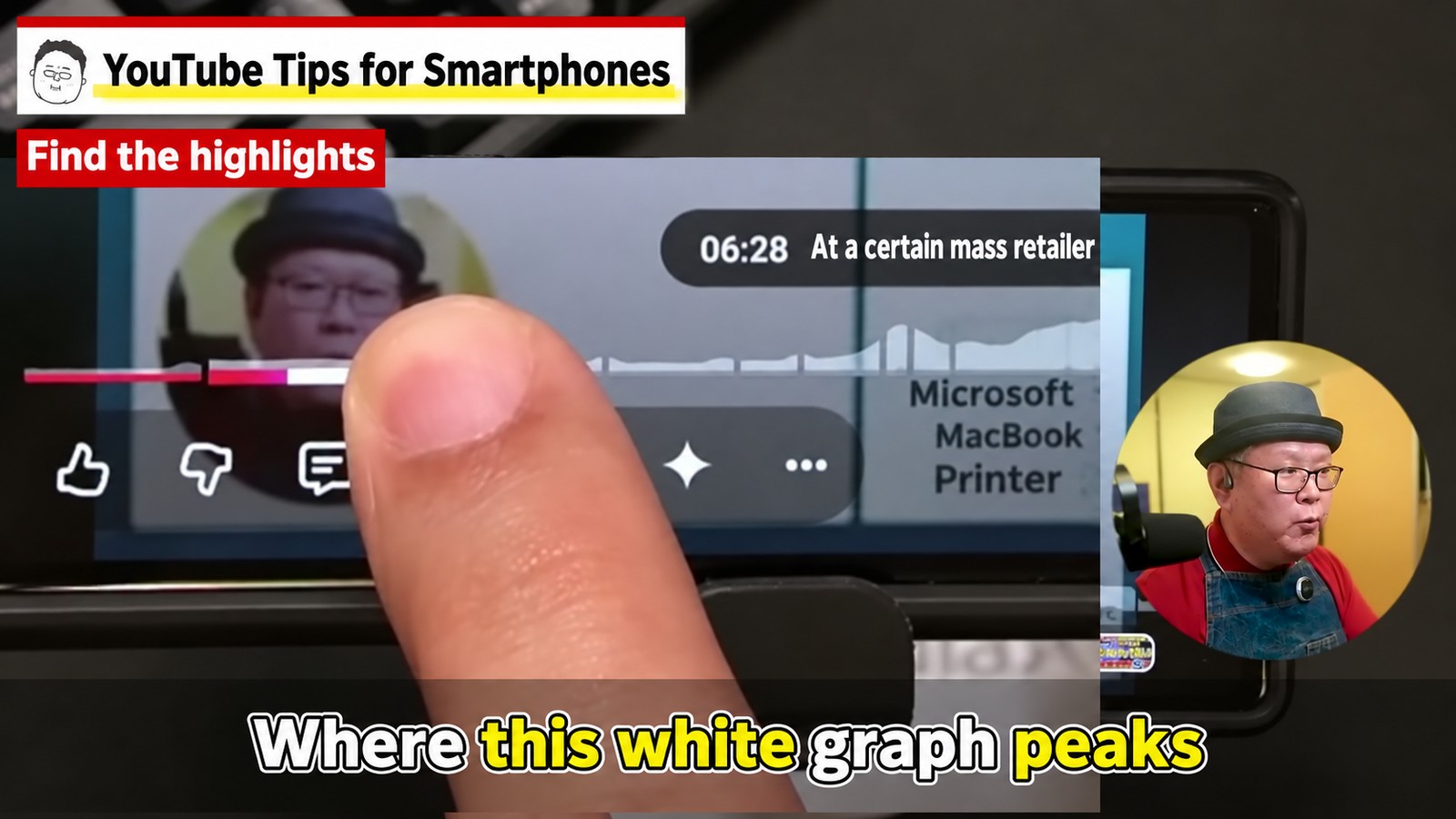
You can tell which scenes are popular with other viewers by looking at the red progress bar at the bottom of the screen. When you slide your finger along the bar, a white wave-like shape appears. The high points of this wave are the most-watched scenes.
When you only want to watch the important parts of a long video, checking the high points of the wave helps you get useful information without wasting time. However, this graph does not appear on every video. It seems to appear mostly on videos with a fairly large number of views.
Watch this part in the video (starts at 4:27)
Change how many seconds a double-tap skips
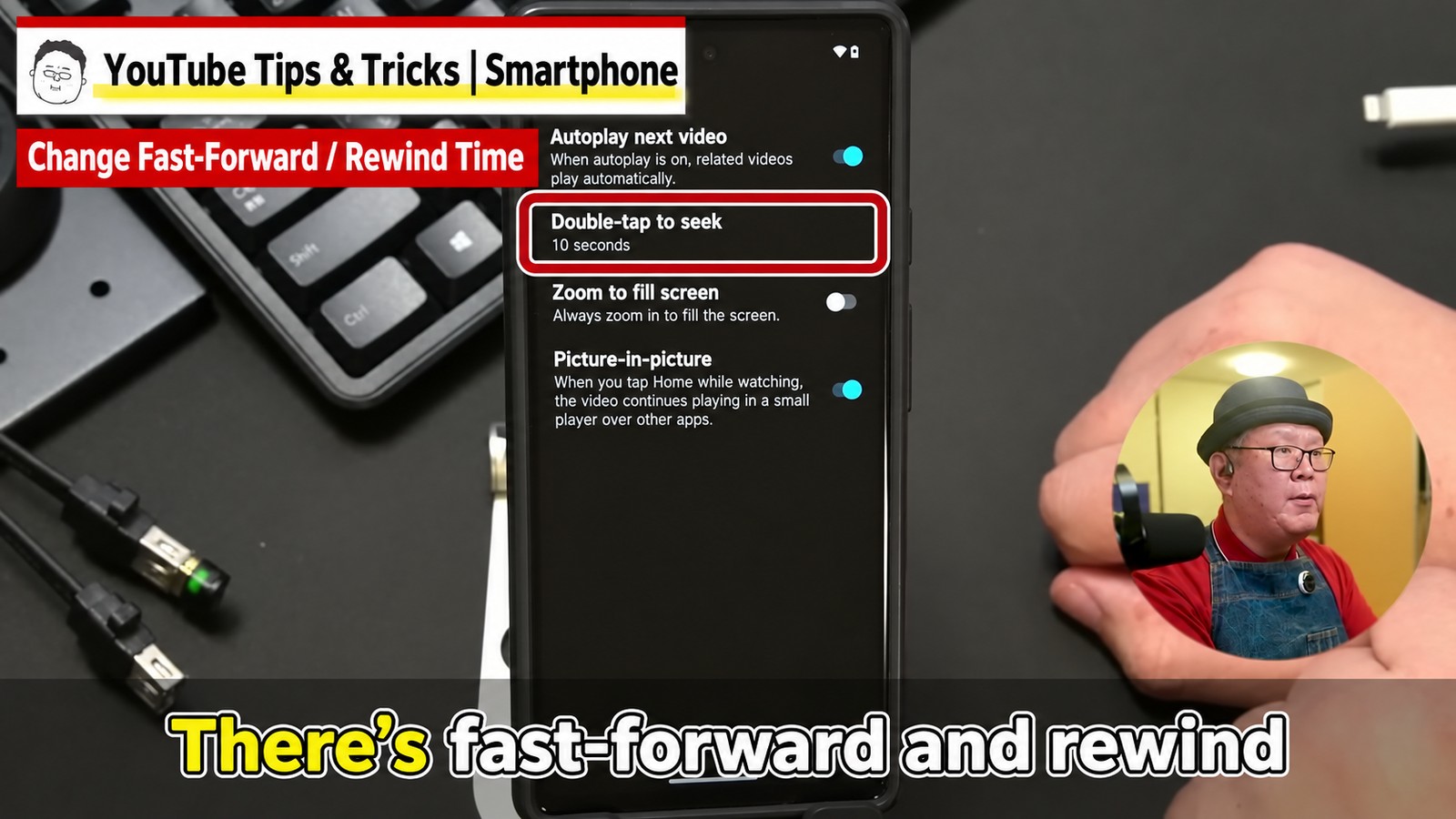
Double-tapping the right side of the screen skips forward 10 seconds, and double-tapping the left side goes back 10 seconds. You can choose this from 5, 10, 15, 20, 30, or 60 seconds. 5 seconds is good if you want to watch closely, and 30 or 60 seconds is handy if you want to skip ahead quickly.
- Tap "You" (マイページ).
- Tap the gear icon in the upper right.
- Tap "Playback" (再生).
- Tap "Double-tap to seek" (ダブルタップで早送り/巻き戻し) and choose the number of seconds.
If you set it to 30 seconds, one double-tap moves you ahead 30 seconds. Keep tapping to move ahead 30 seconds at a time.
Watch this part in the video (starts at 5:33)
Use the sleep timer to stop playback if you fall asleep
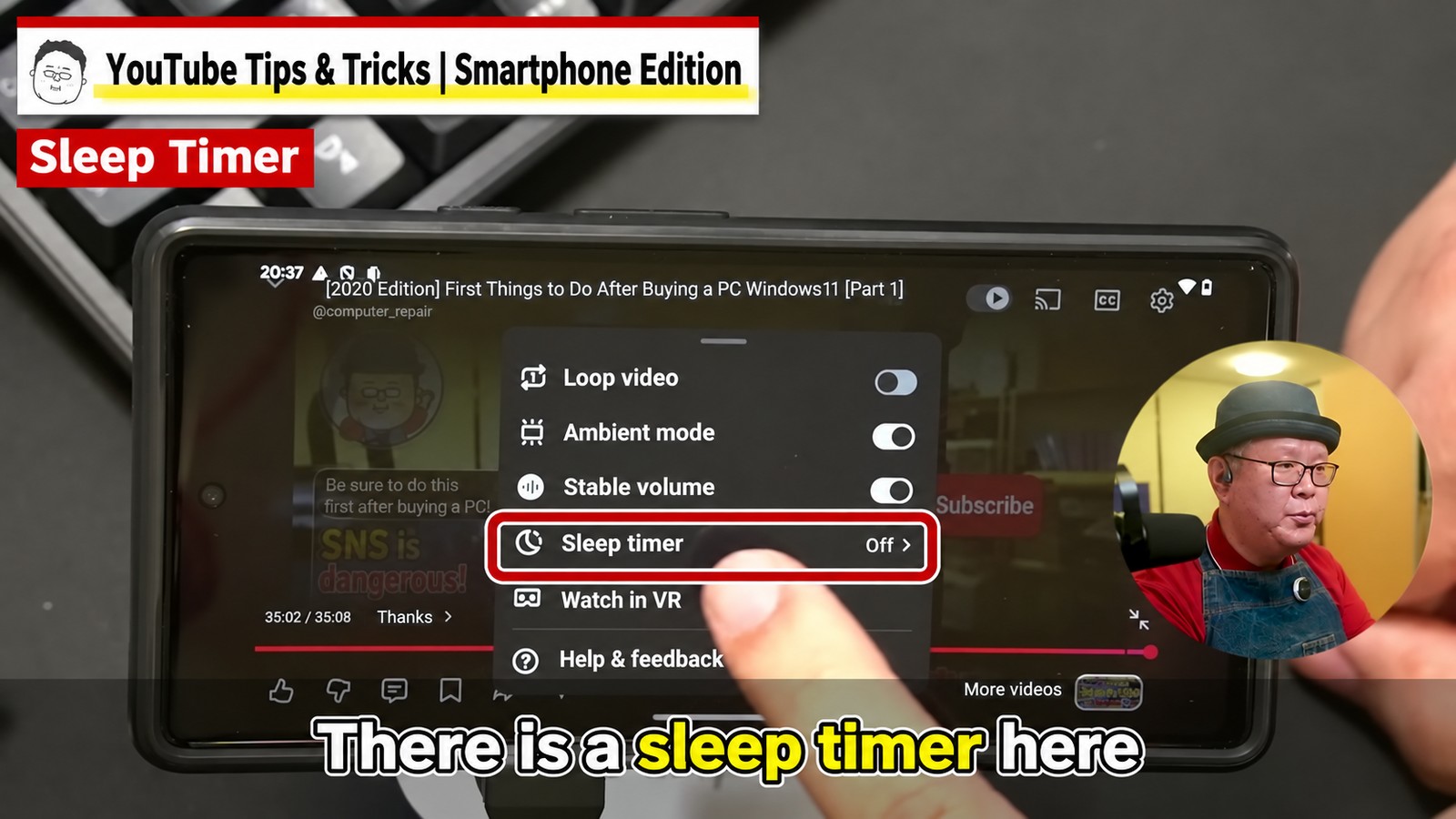
Have you ever fallen asleep watching a video at night, only to find it still playing in the morning? This often happens to the owner of our shop too. If you set the sleep timer, playback stops automatically after the time you choose.
- While a video is playing, tap the gear icon in the upper right.
- Tap "Additional settings" (その他).
- Tap "Sleep timer" (スリープタイマー) and choose a time, such as 30 minutes.
We recommend "End of video" (動画の最後) at the bottom of the list. Playback stops when the current video ends. In the past, you had to combine YouTube with your smartphone's Clock app, but now you can set this in the YouTube app alone.
Watch this part in the video (starts at 7:12)
Find the scene you want using the transcript
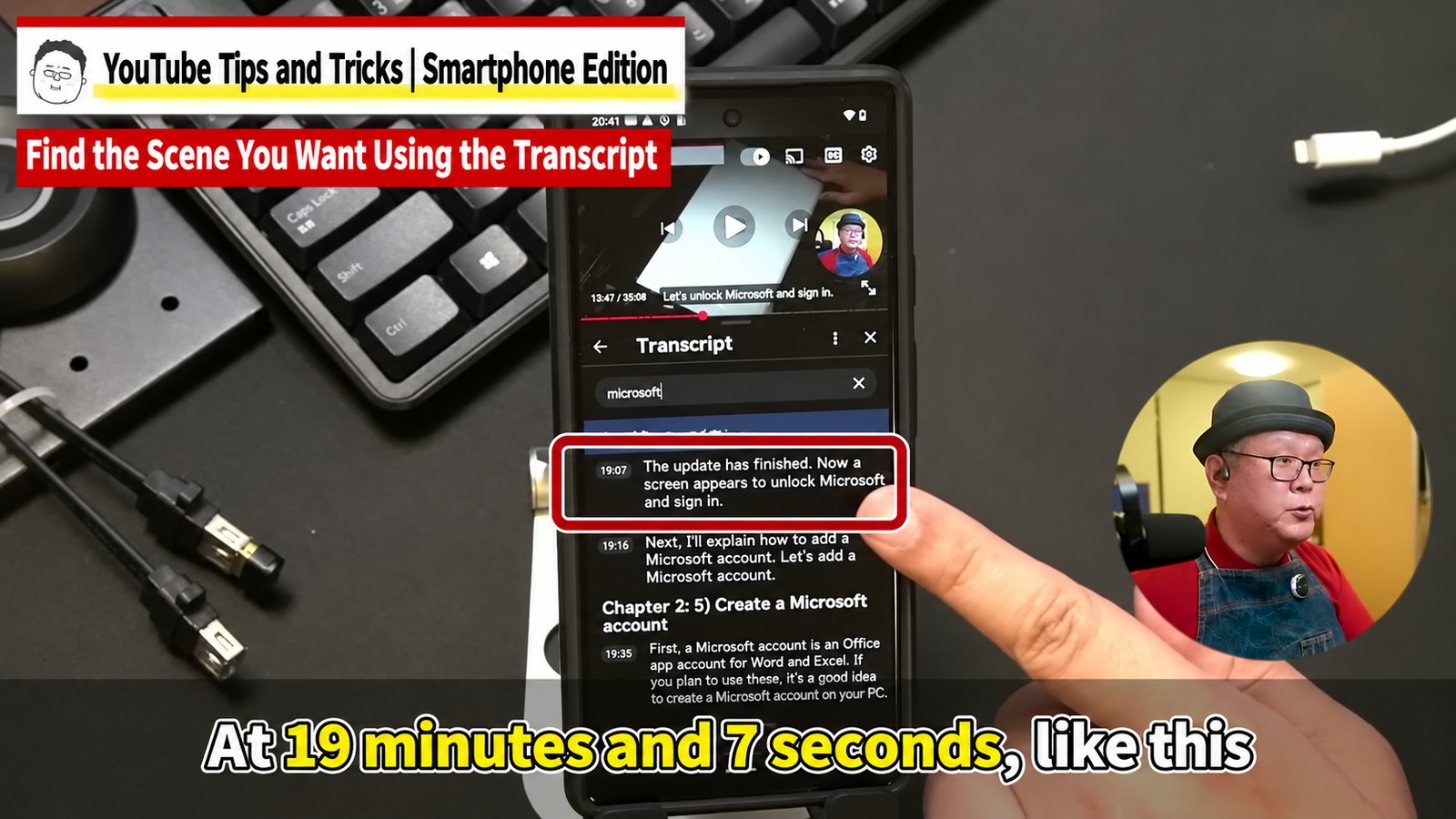
When you want to find where a certain topic came up in a long video, use the transcript (a text version of what is said in the video). You can use it on your smartphone just like on a computer.
- Tap the video's title to open the description.
- Scroll down and tap "Show transcript" (文字起こしを表示).
- If a search button appears, tap it and enter the words you want to find. If it does not appear, read through the transcript to find them.
- Tap a line in the results to jump to that scene.
This is useful for lectures, explainer videos, and long talk videos. However, transcripts are generated automatically by AI, so some words may be transcribed in unexpected ways. Proper nouns and technical terms are especially prone to errors, so if you can't find something, try searching with slightly different words.
Watch this part in the video (starts at 8:33)
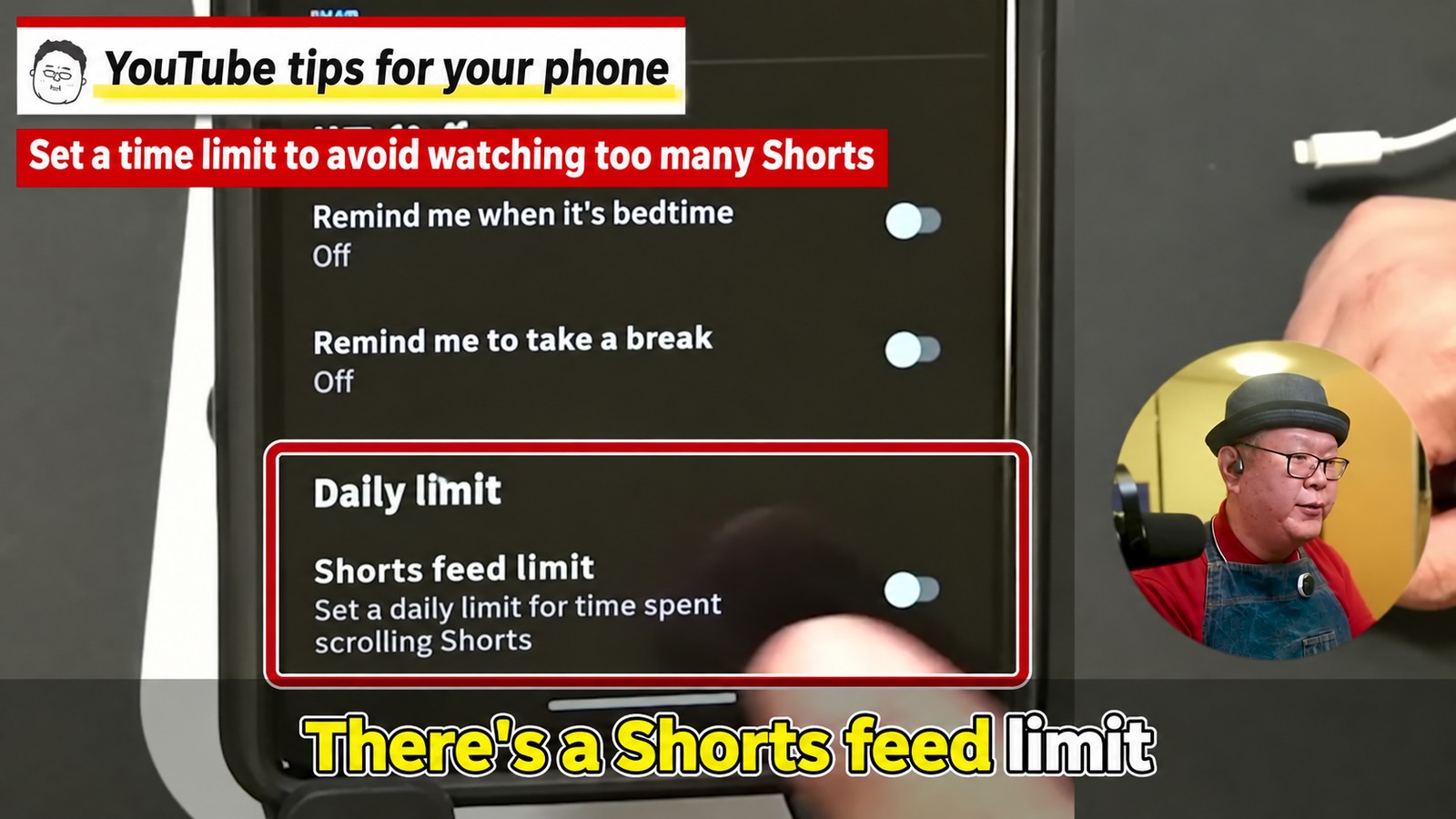
A time limit to keep you from watching too many Shorts
With Shorts, a new video appears every time you scroll down, so before you know it, a lot of time has passed. To prevent this, there is a feature that sets a daily limit on viewing time.
- Tap "You" (マイページ), then tap the gear icon in the upper right.
- Tap "Time management" (時間管理).
- Tap "Shorts feed limit" (ショートフィードの上限) and choose a time.
For example, if you set it to 1 hour, Shorts will be temporarily hidden after 1 hour. However, even after you reach the limit, you can keep watching by choosing "Continue" (続ける). Think of it as a brake that makes you notice you are watching too much. It is almost useless for limiting children's viewing.
You can now also set the limit to 0 minutes. The limit kicks in as soon as you try to open Shorts, which makes it easier to break the habit of mindless scrolling. It is a reassuring feature for anyone who has decided to quit Shorts.
Watch this part in the video (starts at 10:24)
If ads bother you, consider a paid plan
There are apps and browsers that block ads, but our shop does not recommend them. YouTube is a service supported by ad revenue. In 2026, YouTube has significantly strengthened its measures against ad blockers, and forcing ads to disappear can reportedly make playback unstable.
If you don't want to see ads, signing up for a paid plan is one option. The two main plans are as follows.
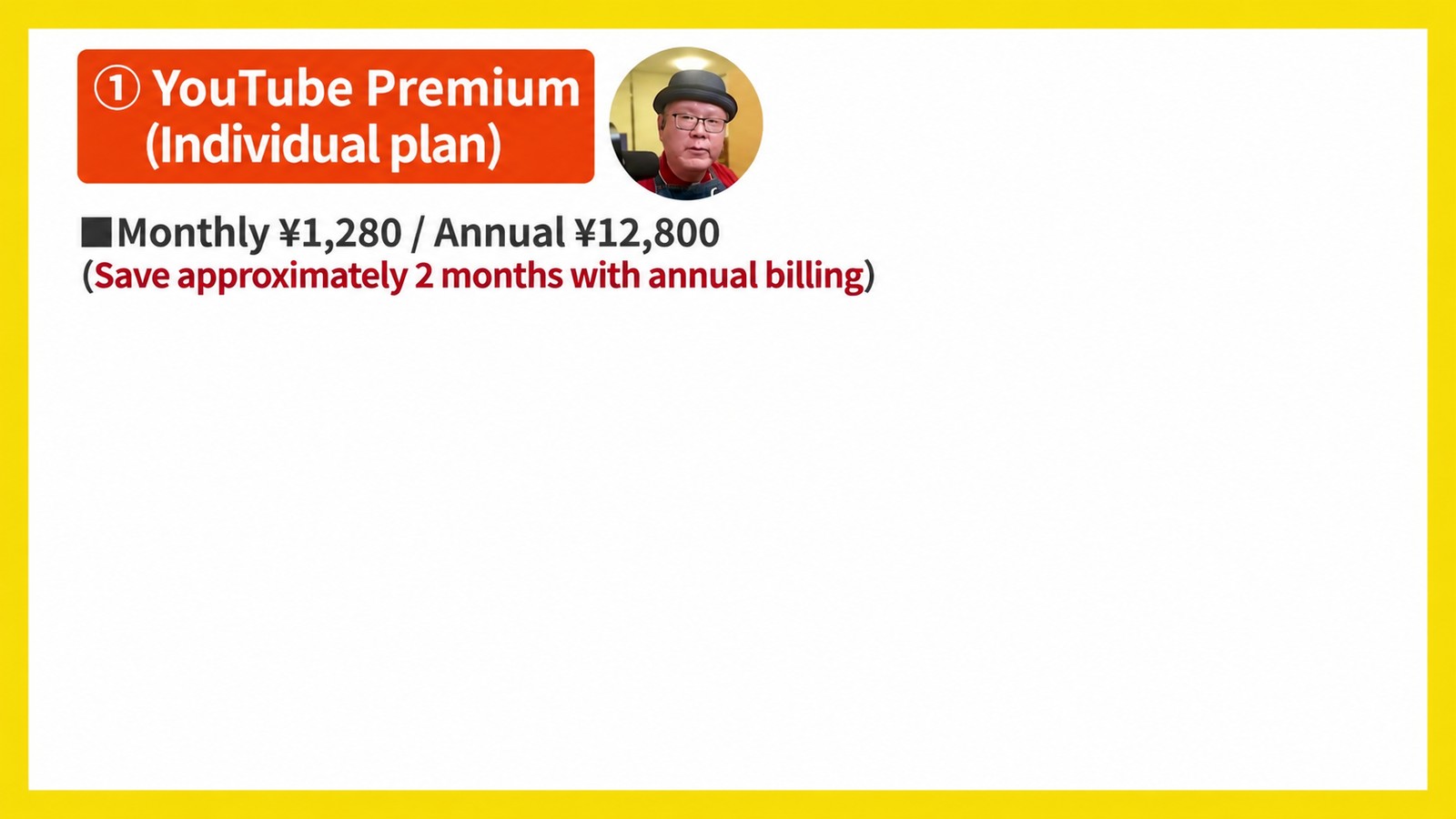
- YouTube Premium (standard plan): The individual plan costs ¥1,280 per month, or ¥12,800 if you pay annually, which effectively saves you two months' worth. Ads disappear from all videos, and you can save videos to your smartphone to watch even where there is no signal. It also includes YouTube Music Premium for unlimited music listening.
- YouTube Premium Lite (lower-cost plan): This plan costs ¥780 per month, ¥500 less than the standard plan. There is no annual payment option. Ads disappear from most videos and you can save videos, but ads reportedly still appear on music content and Shorts. YouTube Music Premium is not included.
If you use an iPhone, do not sign up directly through the YouTube app. Signing up through the app adds Apple's fee, raising the standard plan from ¥1,280 to ¥1,680. The same applies to Lite. If you open YouTube in a browser such as Safari, or sign up from a browser on your computer, you can subscribe at the regular price. After you subscribe, you can keep using the app as usual.
The standard plan suits people who want to remove all ads and also enjoy music. Lite suits people who rarely use music and want to keep costs down. The owner of our shop subscribes to the standard plan.
Watch this part in the video (starts at 12:19)
Summary
- Press and hold the screen to play at 2x speed, and swipe the video up or down to switch between full screen and the normal view.
- You can change how many seconds a double-tap skips in the settings, anywhere from 5 to 60 seconds.
- With the sleep timer's "End of video" option, playback stops at the end of the video even if you fall asleep.
- Searching the transcript lets you jump straight to the scene you want, even in long videos.
- The Shorts time limit is easy to override, so use it as a brake to keep from watching too much.
If ads bother you, consider a paid plan instead of an ad blocker. iPhone users can subscribe at the regular price by signing up through a browser instead of the app.