How to Check SSD Lifespan: If It Shows "Caution" or "Bad," Save Your Data Before Replacing It
This article is a translation of our Japanese original, made with the help of AI.
The video this article is based on
The video is in Japanese.
Chapters (tap to play from that scene)
- 1:58SSDs and HDDs Fail Differently
- 4:29How to Check Your SSD's Status in Windows 11 Settings
- 6:16Always Download CrystalDiskInfo from the Official Website
- 9:25How to Read "Health Status" and Remaining Life
- 11:17If You See "Caution" or "Bad," Copy Your Data First
- 13:41What Not to Do Before Your Data Is Saved
- 15:14Save a Screenshot and Back Up Regularly
- 16:07Tips for Making Your SSD Last Longer
- 18:07If Your PC Won't Start, Go to a Repair Shop—or the Manufacturer if It's Under Warranty
CrystalDiskInfo is an app that checks the health of the SSD or hard drive inside your computer. Customers often come to our shop worried after the app shows "Caution," asking, "Is it about to fail?" or "Do I need to replace it right away?"
Here's the bottom line first. If you see "Caution" or "Bad," copy your important data to another location before you even think about replacing the part. Even if it shows "Good," consider setting up regular backups if you don't already have a backup system in place.
In this article, we'll walk you through how to check your SSD's status, how to read the results, what to do when you see "Caution" or "Bad," and tips for making your SSD last longer.
SSDs and HDDs Fail Differently
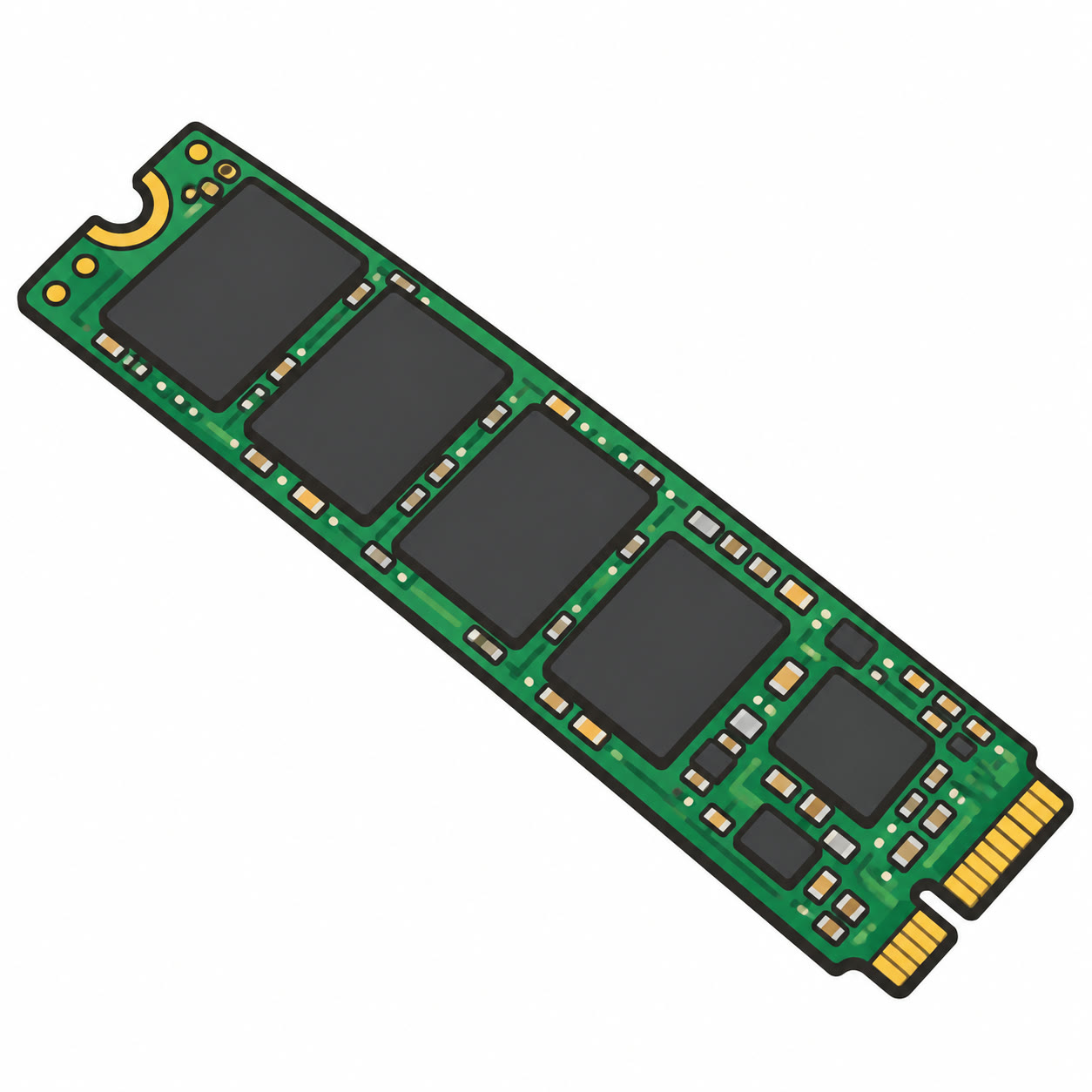
An SSD (solid-state drive) is the part that stores data inside your computer. Older computers mainly used HDDs (hard disk drives), but the two work in completely different ways. Almost all computers today use SSDs.
A study that examined a large number of storage drives in Google's data centers over six years reported that SSDs needed replacing at a lower rate than HDDs. However, since the study was done in data centers, the results don't necessarily apply directly to home computers.
What we notice in our repair work is how differently they behave before failing. With an HDD, you can sometimes spot warning signs, such as strange noises or sluggish performance. With an SSD, it's common for the drive to work normally one moment and then suddenly stop being recognized.
The computer won't boot into Windows when you turn it on, and when you check the BIOS (the computer's basic settings screen), the SSD itself isn't detected. We get quite a few computers brought in like this. Sometimes we manage to recover the data, and sometimes it's difficult. This is our shop's impression, not a statistic, and it doesn't mean SSDs are especially prone to failure.
There's one more thing we'd like you to know. The "lifespan" figures we'll look at below mainly indicate wear from repeated writing. Failures caused by other factors, such as defective components, are often hard to predict. The developer of CrystalDiskInfo also advises that a drive can fail without warning even when it shows "Good," so you should back up important data.
Watch this part in the video (starts at 1:58)
How to Check Your SSD's Status in Windows 11 Settings
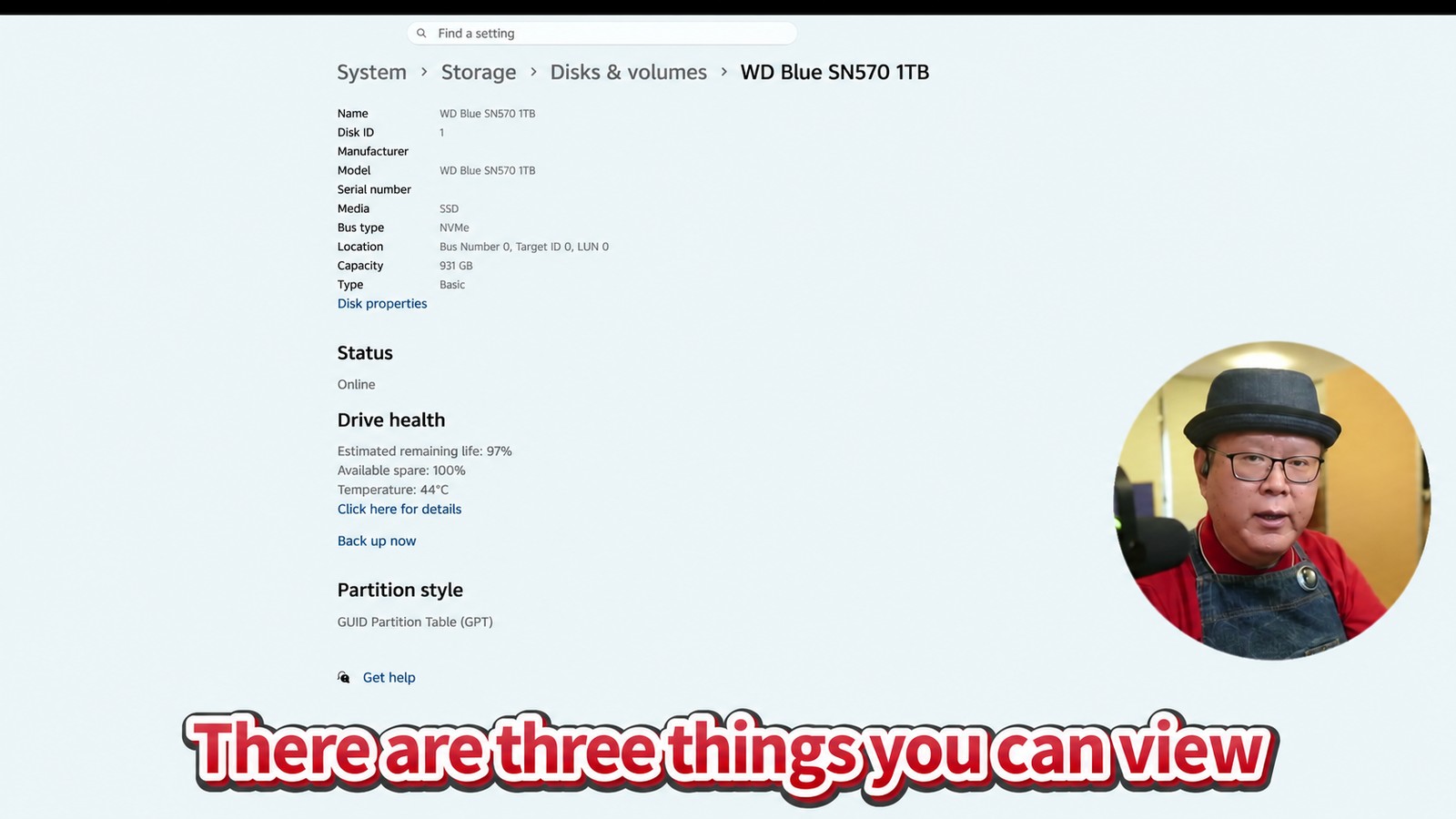
In Windows 11, you can check your SSD's status in the Settings app without installing anything. However, according to Microsoft, this only works for a type of SSD called NVMe. SSDs of the SATA type and HDDs aren't supported.
- Right-click the Start button and click "Settings" (設定).
- Click "System" (システム) on the left, then click "Storage" (ストレージ).
- Scroll down a little and click "Advanced storage settings" (ストレージの詳細設定).
- Click "Disks & volumes" (ディスクとボリューム), then click the name of the SSD you want to check.
- Click "Properties" (プロパティ) to the right of the SSD.
Three items are shown here: estimated remaining life, available spare, and temperature. Available spare is different from the free space shown in Windows. Microsoft explains that a drop in remaining life does not by itself mean the drive has failed.
What matters is whether any warnings appear. If you see a warning saying available spare capacity is low, reliability is degraded, or the drive has become read-only, copy your important data to another storage device before seeking repairs.
Watch this part in the video (starts at 4:29)
Always Download CrystalDiskInfo from the Official Website
The Settings app can't show SSDs other than NVMe drives, or HDDs. In that case, install CrystalDiskInfo. It's a long-established app made by a Japanese developer, and our shop considers it trustworthy. However, depending on your computer model, it may not be able to retrieve the information.
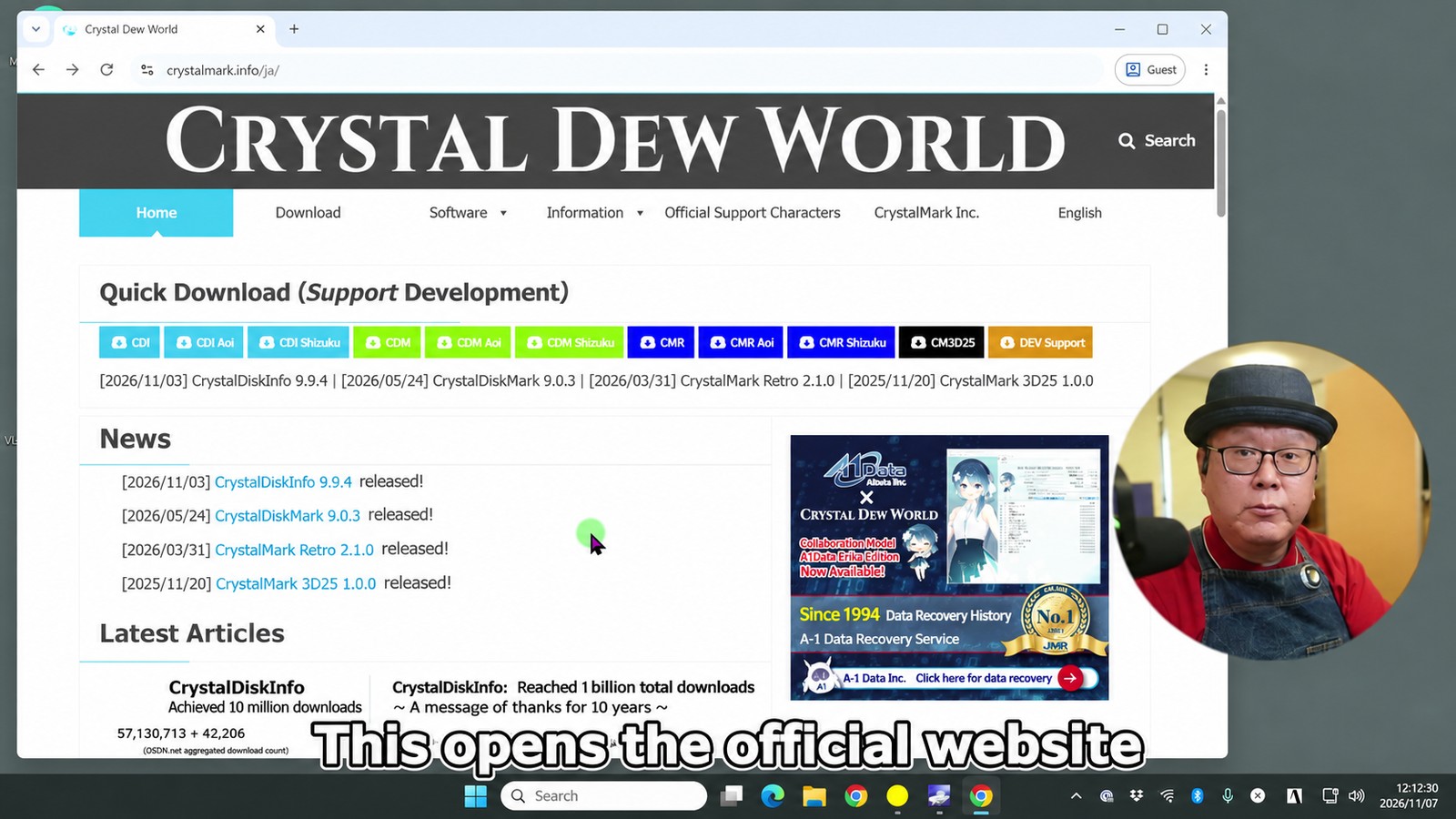
Always download it from the official website, Crystal Dew World. Unofficial sites with similar names sometimes prompt you to download it, and files from those sites may contain malicious software.
- Open the official website in your browser and click "CDI" under Quick Download.
- After a moment, a save dialog will appear. Choose a folder and save the file.
- When the download finishes, open the file. If asked for permission, click "Yes" (はい).
- Read the license agreement all the way through. If you agree, check the box and click "Next" (次へ).
- Choose whether to create shortcuts as you like, then click "Install" (インストール).
- If you're asked whether to install other apps along with it, decide for yourself and choose accordingly.
- Click "Finish" (完了), and CrystalDiskInfo will launch.
Watch this part in the video (starts at 6:16)
How to Read "Health Status" and Remaining Life
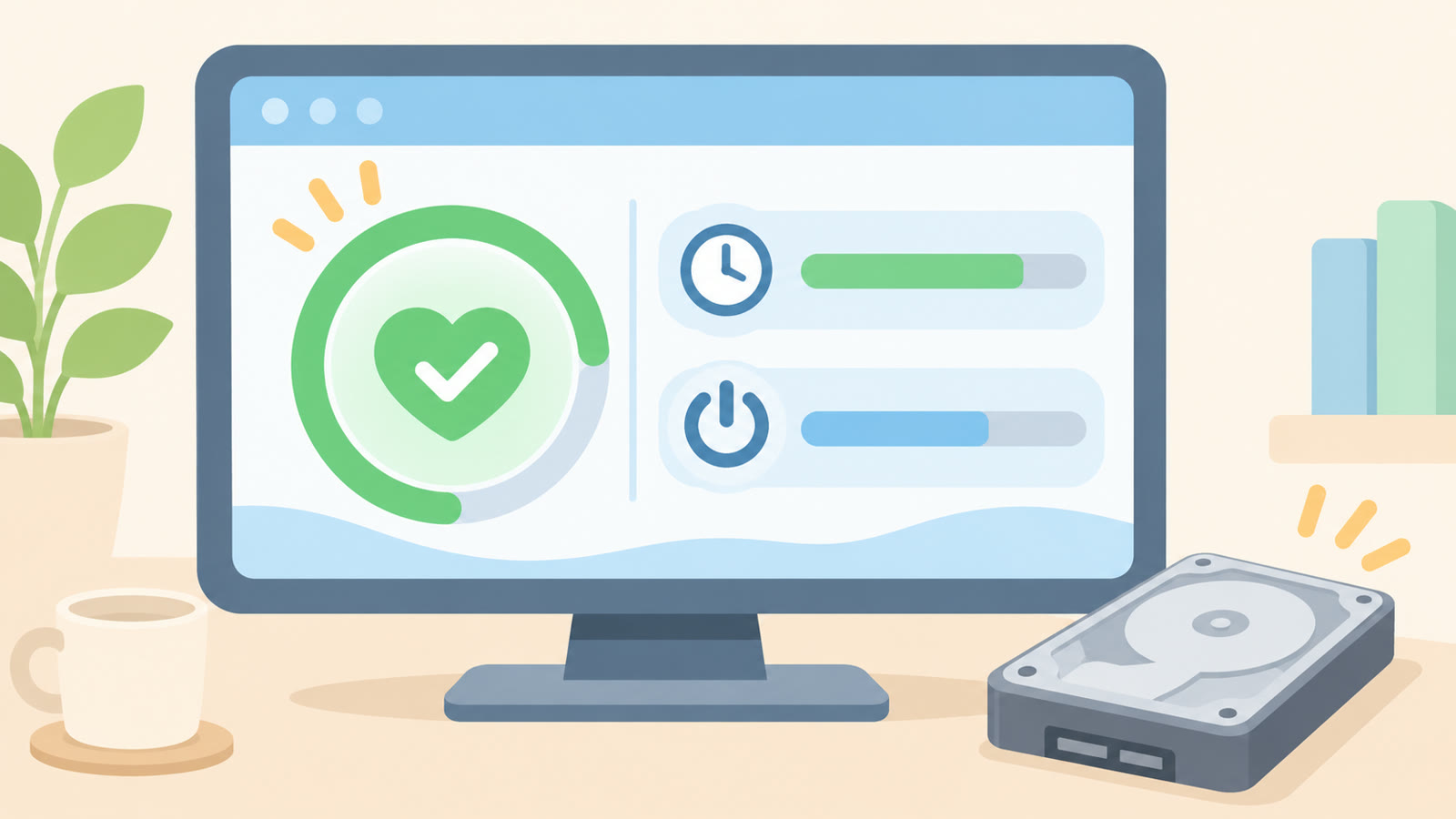
The screen also shows information such as Power On Hours and Power On Count, but the most important item is "Health Status" (健康状態). It shows one of the following: "Good" (正常), "Caution" (注意), "Bad" (異常), or "Unknown" (不明). For some SSDs, the remaining life is also shown as a percentage.
According to the official website, "Caution" does not mean the drive has failed. However, there's also no guarantee it will keep working without problems for a long time. We don't recommend leaving it as is, thinking, "It still works, so it's fine."
What an SSD looks at to show "Caution" varies by manufacturer and model. Some SSDs switch to "Caution" when remaining life drops to 10% or below, while others judge based on how many damaged areas have been replaced with spare areas.
"Reallocated Sectors Count" (代替処理済みのセクタ数) is the number of unusable areas that have been replaced with spare areas. However, the meaning of the items and numbers differs from SSD to SSD, so it's hard to judge a failure from this number alone. You also can't calculate how many more days a drive will last from its remaining life percentage. The lifespan figure is only a rough guide.
Watch this part in the video (starts at 9:25)
If You See "Caution" or "Bad," Copy Your Data First
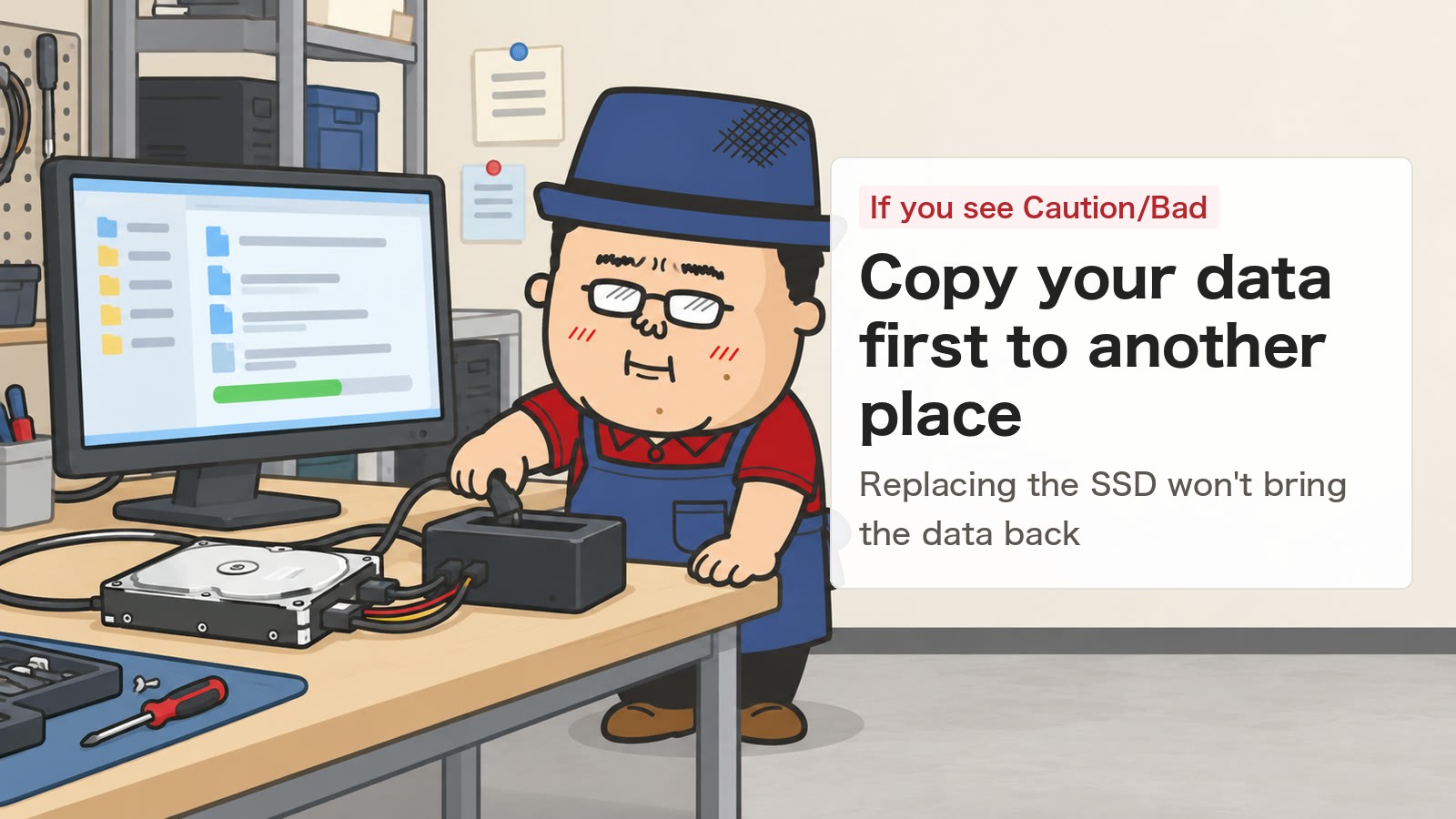
When you see "Caution" or "Bad," the first thing to do is not replace the part. It's to move your important data somewhere else. Replacing the SSD doesn't carry over the data on it, because a new SSD is empty. The official CrystalDiskInfo website also advises backing up your data first and only then considering a replacement.
If the SSD can still be read normally, copy the things you'd least want to lose first, such as family photos, work files, and your New Year's card (nengajo) address list. If read errors keep occurring or the SSD isn't recognized, don't force it—consult a professional data recovery service. Copying entire folders at once is risky, because the drive could fail completely in the middle of copying.
- Copy the data to a location separate from the failing part, such as an external SSD or HDD, a USB flash drive, or cloud storage.
- Once the copy is finished, check that the data opens properly.
- If you're using cloud storage, also check that the upload has finished.
Even if you have a C drive and a D drive, copying from C to D is pointless if they're just partitions on the same SSD.
If read errors keep occurring, the SSD isn't recognized, or the connection keeps dropping, don't keep retrying the copy. The copying itself can be the final blow. If your important data exists only on that SSD, don't try restarting, reconnecting, repairing, or running diagnostics—consult a professional data recovery service instead.
Watch this part in the video (starts at 11:17)
What Not to Do Before Your Data Is Saved
Before you copy your data, avoid the following actions that put stress on the SSD.
- Running long performance tests to check whether it's really broken
- Running tests that check whether the entire drive can be written to
- Copying everything at once without setting priorities
- Following on-screen prompts to initialize or format the drive (this means erasing your own data)
- Trying various operations to recover the data yourself
Even after you've copied your important data elsewhere, consult a repair shop or a professional before running tests or repairs on a faulty SSD.
Watch this part in the video (starts at 13:41)
Save a Screenshot and Back Up Regularly
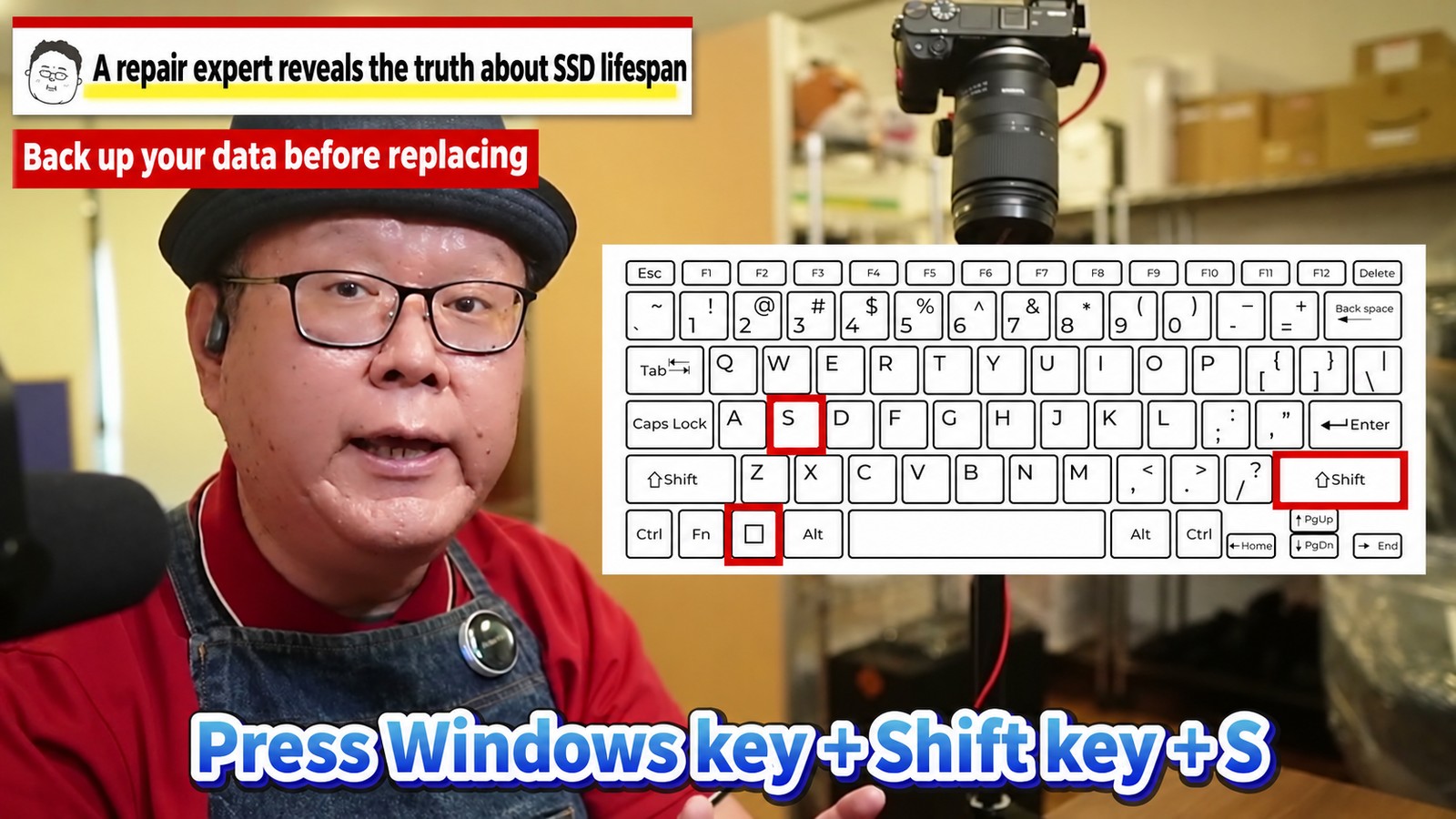
The second thing to do is save the CrystalDiskInfo screen. Take a photo with your smartphone, or press the Windows key + Shift + S to take a screenshot and save it. This is helpful when explaining the drive's condition to the manufacturer or a repair shop.
Even if nothing is wrong, we recommend backing up regularly.
Watch this part in the video (starts at 15:14)
Tips for Making Your SSD Last Longer
There's nothing special you need to do to make your SSD last longer. Just use it normally. In the HDD era, you had to run defragmentation (rearranging data) yourself on a regular basis. Today's Windows has a feature called "Optimize Drives" (ドライブの最適化) that automatically performs the right maintenance for SSDs. Normally, you can just leave it to that.
It's also important not to fill the drive to capacity. When free space runs low, your computer slows down. This isn't a figure backed by data, but our shop's owner feels you should keep at least about 20 GB free.
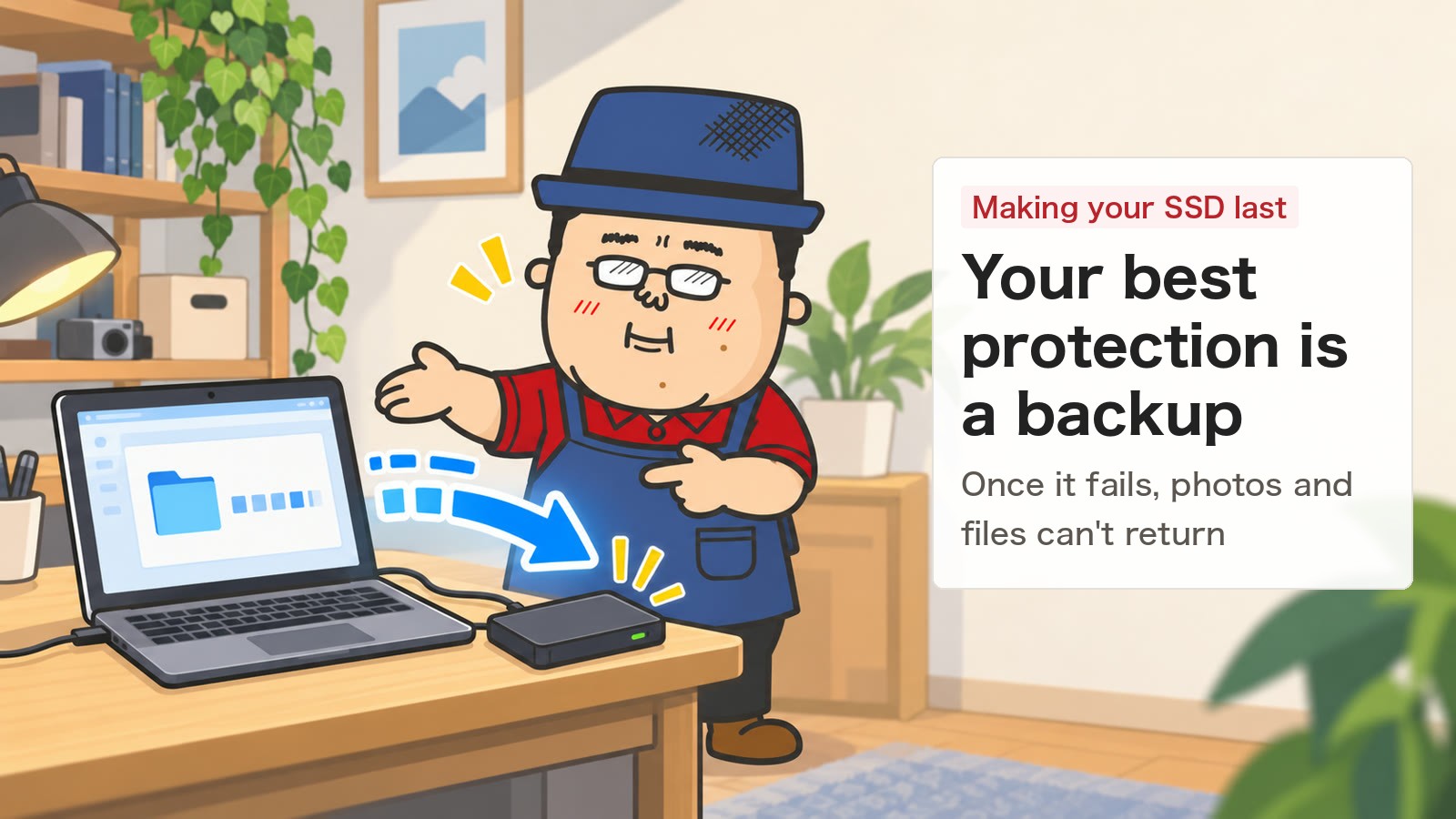
And the best preparation of all is regular backups. You can replace a computer, but no amount of money can always bring back lost data. Photos of your children or grandchildren growing up can't be retaken. Once the drive fails, it's too late, so please consider setting up automatic backups.
Watch this part in the video (starts at 16:07)
If Your PC Won't Start, Go to a Repair Shop—or the Manufacturer if It's Under Warranty
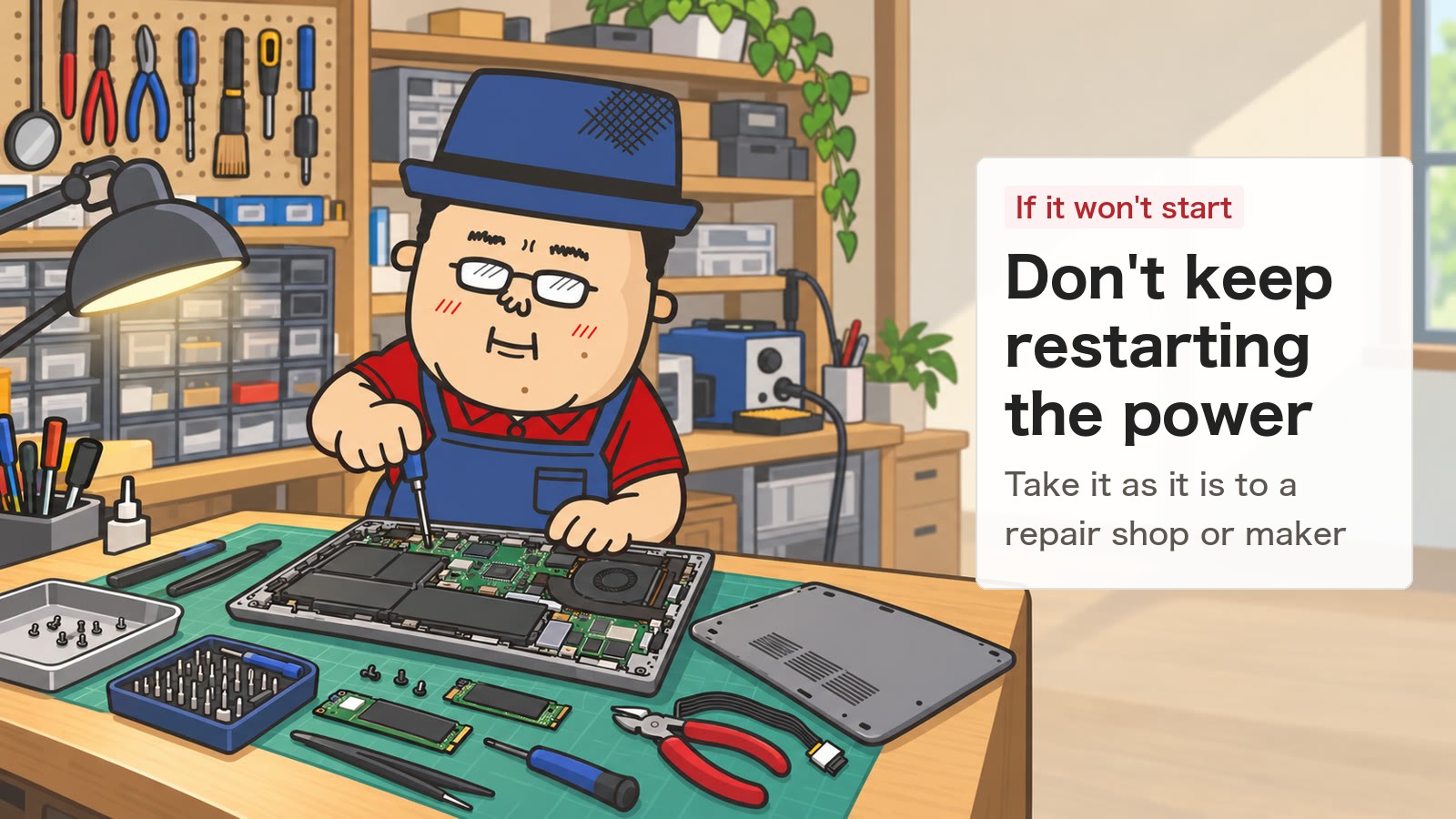
If CrystalDiskInfo shows "Caution" or "Bad," or the Windows Settings app shows a warning, save your data first and then consider a replacement. If the computer no longer starts, don't keep turning the power off and on—bring it as is to the manufacturer, the store where you bought it, or a repair shop.
Our shop handles SSD replacement and file retrieval. We can't always recover data, but in some cases we can help. We'll take your computer in, examine it, tell you what we find, and then decide together with you how to proceed.
If the manufacturer's warranty is still valid, we recommend using it before going to a repair shop. In that case, be sure to check whether your data will be kept.
If you also want to keep your computer's settings and apps, there's a method called "cloning" that copies the entire contents of the SSD. However, the process can make a faulty SSD's condition worse, so prioritize saving your important data and consult a repair shop or a professional before starting.
Watch this part in the video (starts at 18:07)
Summary
- Research shows SSDs need replacing at a lower rate than HDDs, but they can suddenly stop being recognized without warning.
- For NVMe SSDs, you can check the status in the Windows 11 Settings app; for other drives, use CrystalDiskInfo. Always download CrystalDiskInfo from the official website.
- "Caution" doesn't mean the drive is about to fail, but don't ignore it. The lifespan figure is only a rough guide.
- If you see "Caution" or "Bad," copy your important data to another location before replacing the drive. If errors keep occurring, don't force it—consult a professional.
- If your computer won't start, don't keep turning the power off and on. Bring it to a repair shop or the manufacturer.
Whether the status shows "Caution" or "Good," having a system in place to back up your important data is the best insurance. Once your data is lost, it's too late, so prepare ahead of time.
Related repair services: SSD Replacement Service, Data Recovery & Backup