
PC Won't Start After Windows Update | Checking for and Troubleshooting KB5132061
This article is a translation of our Japanese original, made with the help of AI.
The video this article is based on
The video is in Japanese.
Chapters (tap to play from that scene)
- 1:22What Is KB5132061? Three Problems Reported with the November Update
- 2:37On the "Working on updates" (更新プログラムを構成しています) Screen, Wait Without Turning Off the Power
- 3:52Two Things Not to Do: Repeatedly Holding Down the Power Button, and Resetting the PC
- 4:49Don't Operate the PC If It Makes Strange Noises, Gets Hot, or Smells Burnt
- 5:31Check Your BitLocker Recovery Key First
- 7:16How to Open the Recovery Screen and Advanced Options
- 8:15If Your PC Starts, Back Up Your Important Data First
- 9:48Step 1: Quick Machine Recovery
- 10:15Step 2: Uninstall Updates
- 10:41Step 3: How to Use System Restore
- 12:01If the Three Steps Don't Work, Go to a Repair Shop Before Resetting
- 13:28If Your PC Starts but the Update Won't Install
- 16:00Activation Error 0x80041008: Cause and What to Do
"I restarted after a Windows Update, and now my PC won't start." Our shop has received several inquiries like this. Many people have reported that their PC stopped starting after KB5132061, a Windows 11 update released in November. However, the cause is not yet clear.
In this article, we explain, step by step, how to try to recover your PC while protecting your data. The worst thing you can do is panic because your PC won't start and choose to reset it. First, stay calm and read through to the end.
What Is KB5132061? Three Problems Reported with the November Update
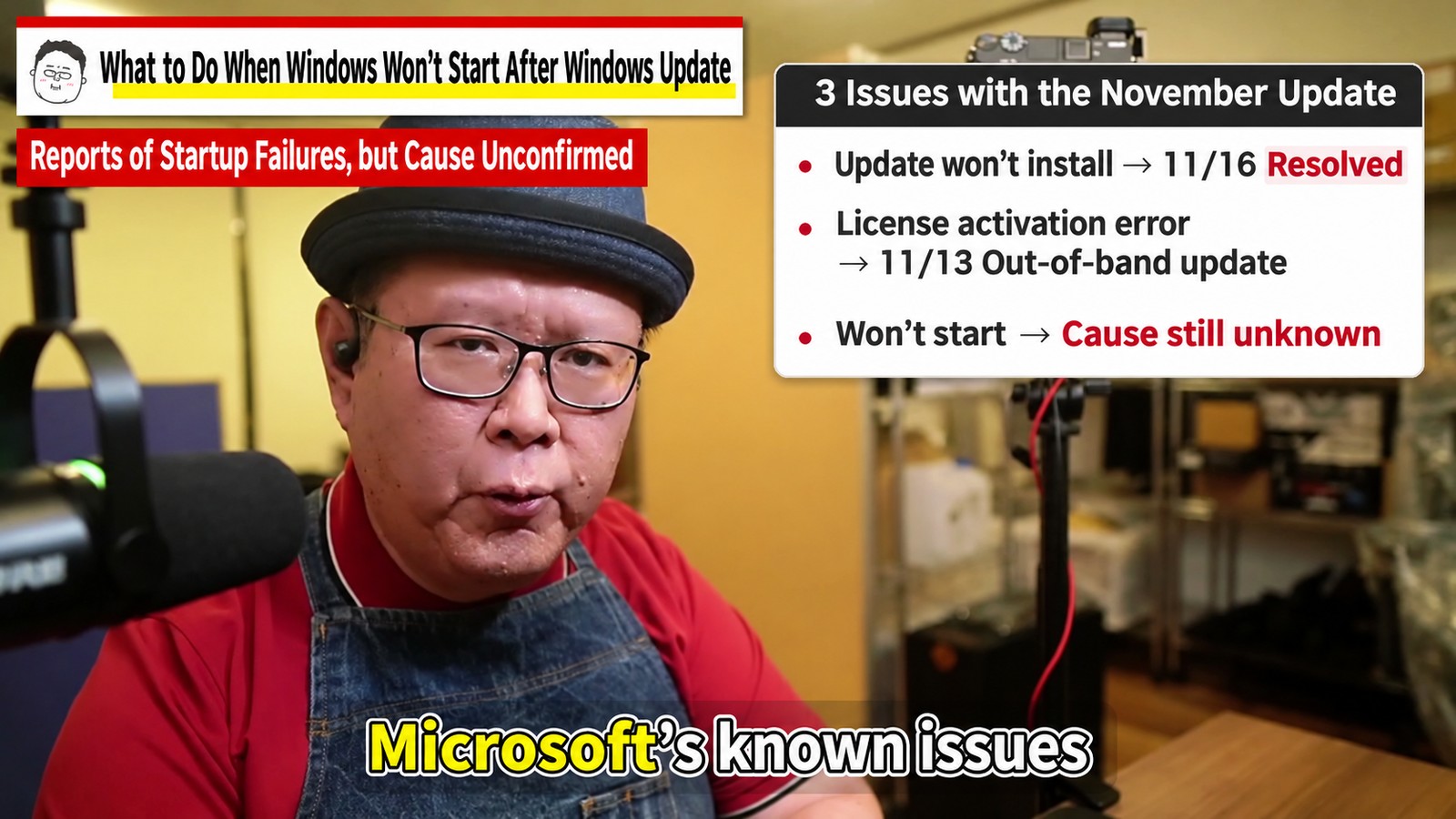
KB5132061 is the monthly security update that Microsoft released on November 11 (Japan time). Since this update, there have been reports on Microsoft's Q&A forums and elsewhere of PCs getting stuck on the Automatic Repair screen or stopping with a blue screen error.
Two other problems have also been reported with the November update.
- The update fails to install: Microsoft marked this as resolved on November 16
- Activation errors: An out-of-band update to fix this was released on November 13
On the other hand, as of November 19, the startup problem is not on Microsoft's list of known issues. Avoid changing settings in the BIOS (the PC's basic settings screen) or trying commands you find in online posts. Those posts are not always correct.
Watch this part in the video (starting at 1:22)
On the "Working on updates" (更新プログラムを構成しています) Screen, Wait Without Turning Off the Power
Windows Update is not necessarily the reason your PC won't start. It's possible that a part such as the SSD (the part that stores your data) happened to fail around the same time.
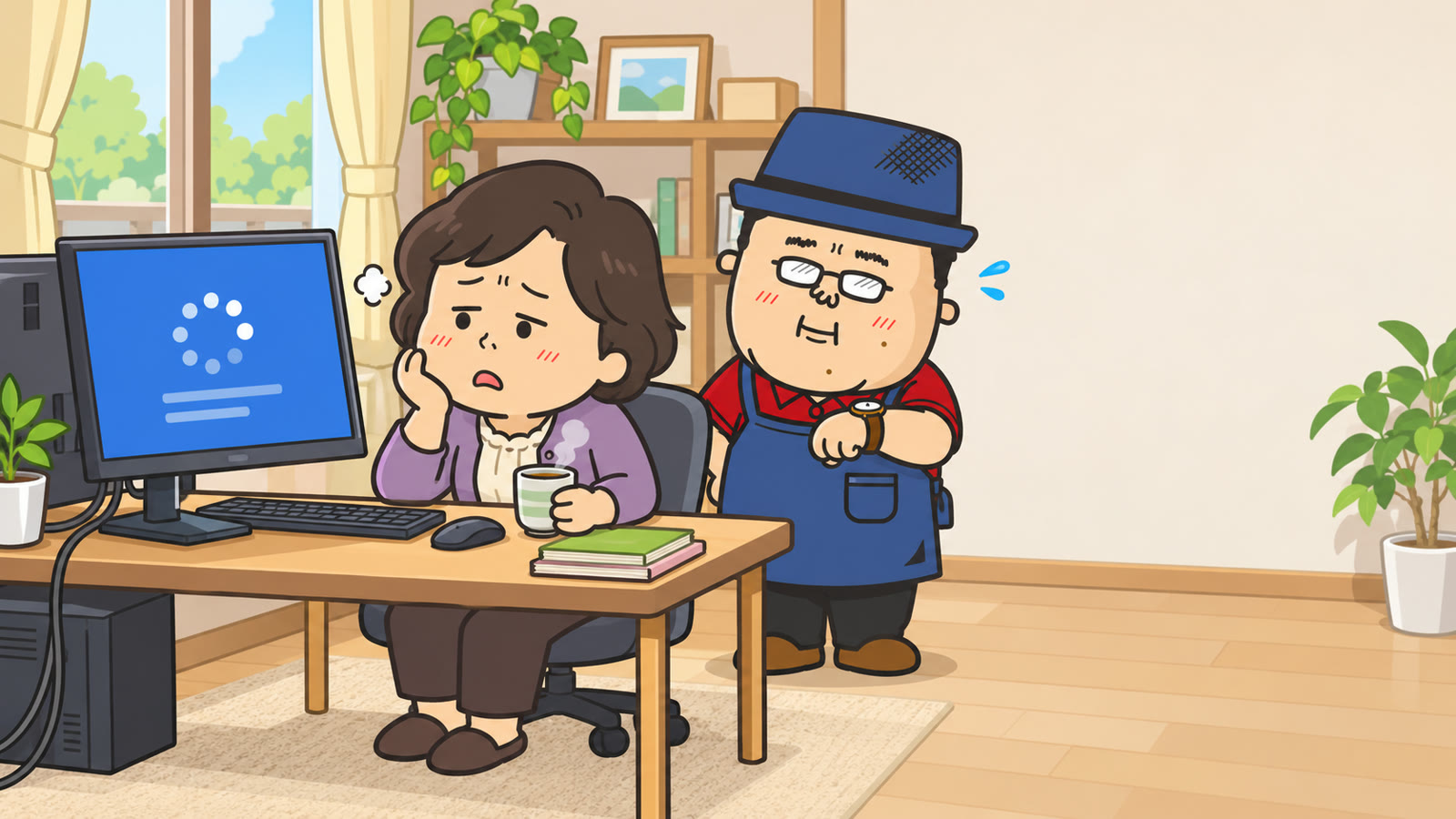
If the screen shows that an update is in progress, such as "Working on updates" (更新プログラムを構成しています), wait without turning off the power, even if it takes a long time. On PCs that aren't very powerful, this can take quite a while. Even if it seems stuck, don't interrupt it by holding down the power button.
If neither the lights nor the fan respond, there may be a problem with a power component. In that case, the PC needs repair.
Watch this part in the video (starting at 2:37)
Two Things Not to Do: Repeatedly Holding Down the Power Button, and Resetting the PC
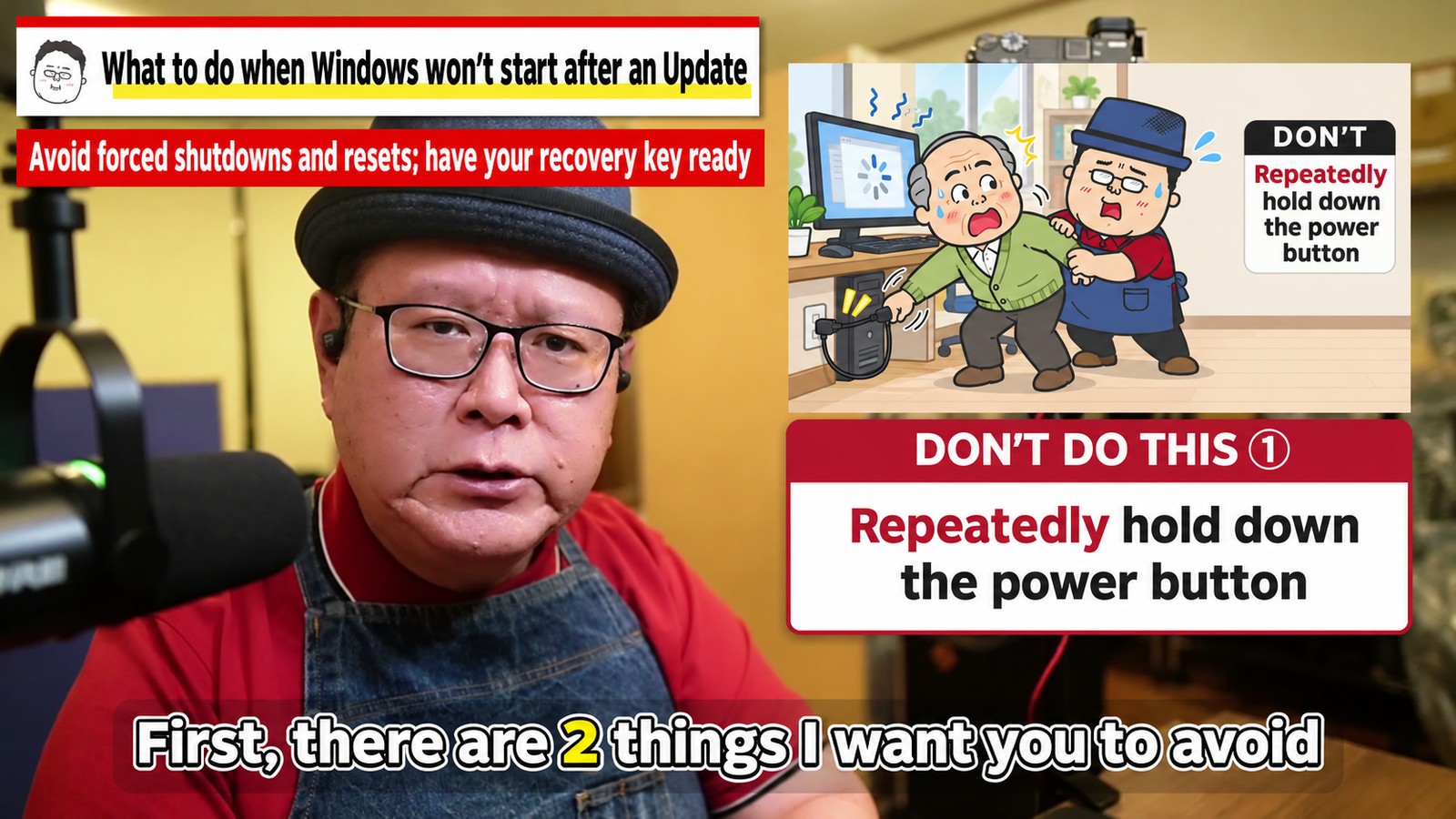
- Repeatedly turning the PC off by holding down the power button and then turning it back on. This can corrupt files being updated or finish off a failing SSD, making your data even harder to recover.
- Panicking and choosing to reset the PC. Even if you choose "Keep my files" (個人用ファイルを保持する) along the way, your installed apps and settings will be erased.
Never choose "Reset" or "Cloud rebuild" (クラウドから再構築) without a backup of your data. Even the recovery steps below can't guarantee your data will be protected. If recovering your important data is your top priority, take your PC to a repair shop before you start.
Watch this part in the video (starting at 3:52)
Don't Operate the PC If It Makes Strange Noises, Gets Hot, or Smells Burnt
In the following cases, don't try the recovery steps. You could finish off a PC that is about to fail.
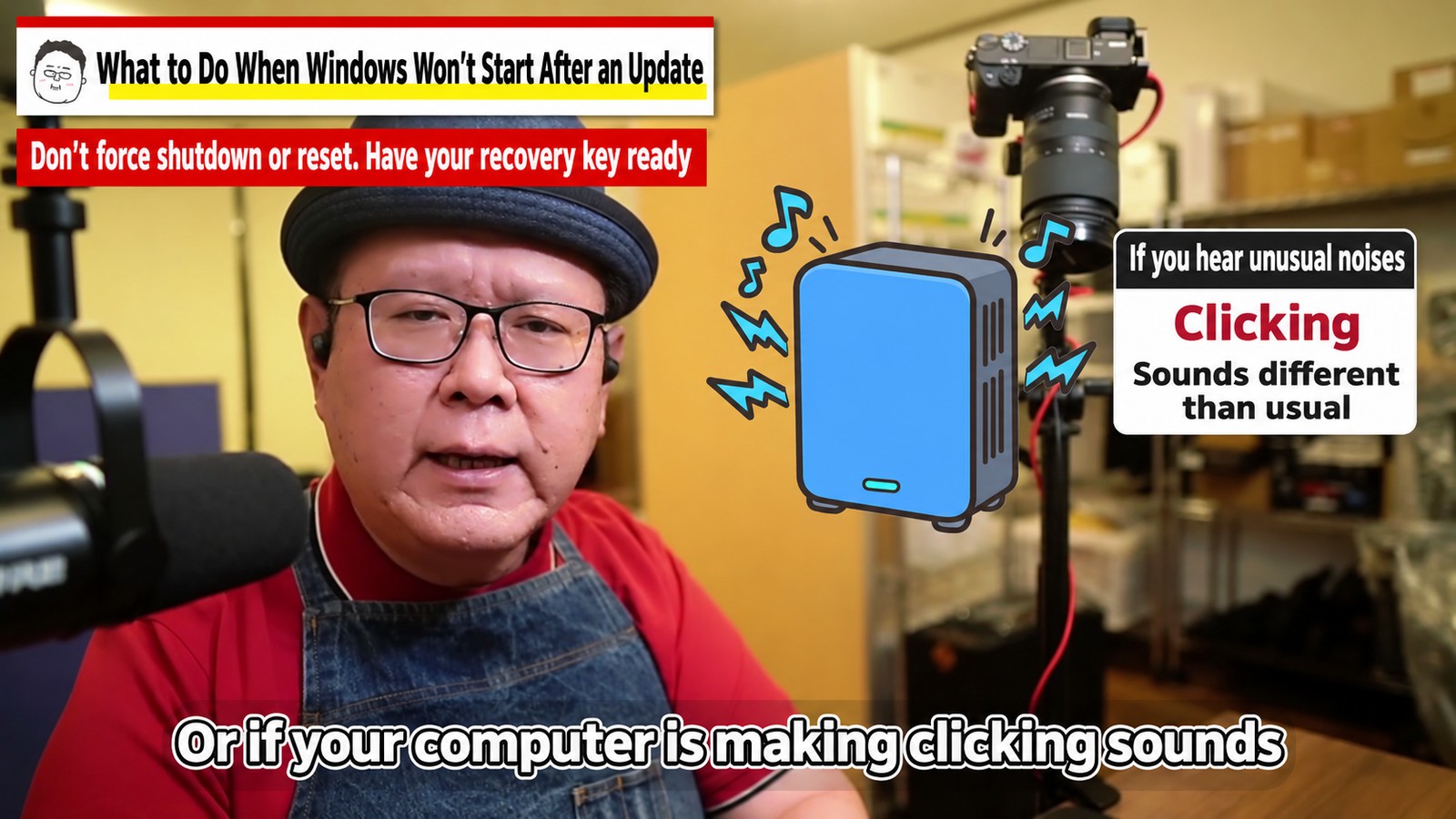
- It makes unusual sounds, such as clicking
- A message says the storage drive can't be read (don't keep trying to start or repair it)
- The laptop's case is bulging, it is abnormally hot, or it smells burnt (stop using and charging it)
If smoke or fire ever appears, put your own safety ahead of your data.
Watch this part in the video (starting at 4:49)
Check Your BitLocker Recovery Key First
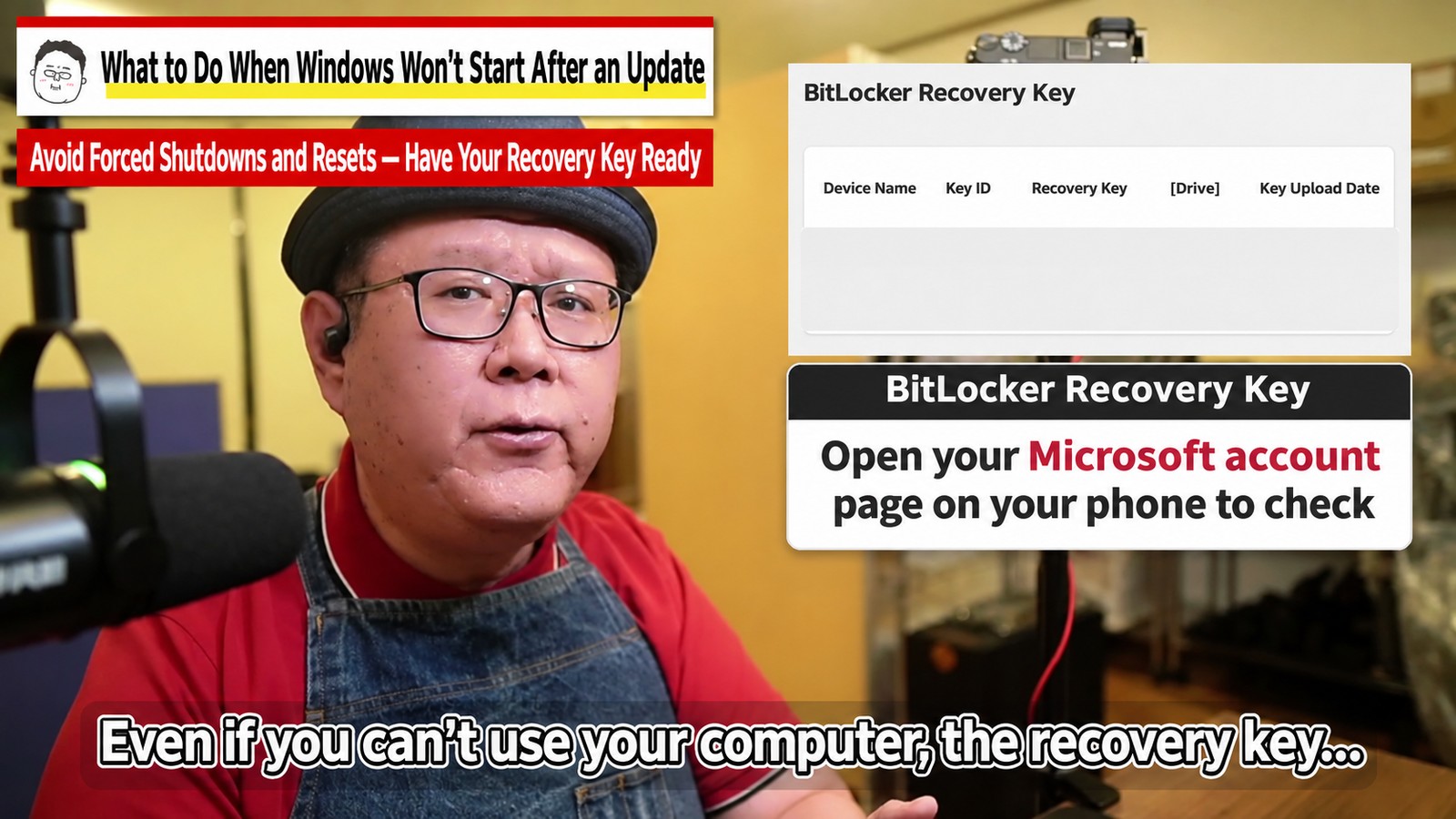
BitLocker is a feature that protects the contents of your PC by encrypting them. If you haven't turned it off, or aren't sure whether it's on, it may be turned on. Some recovery steps may ask for a 48-digit recovery key.
Even if you can't use your PC, you can find your recovery key on the Microsoft account web page from a smartphone or another device. If your PC is working normally now, check whether BitLocker is turned on, and if it is, write down your recovery key.
If your drive is encrypted and you can't find your recovery key, consult a repair shop before resetting your PC. You may simply not have found the recovery key yet, and recovery may still be possible. If you don't know your Microsoft account or your recovery key, even a repair shop may not be able to recover your data. Before resetting, check where your recovery key is saved.
Watch this part in the video (starting at 5:31)
How to Open the Recovery Screen and Advanced Options
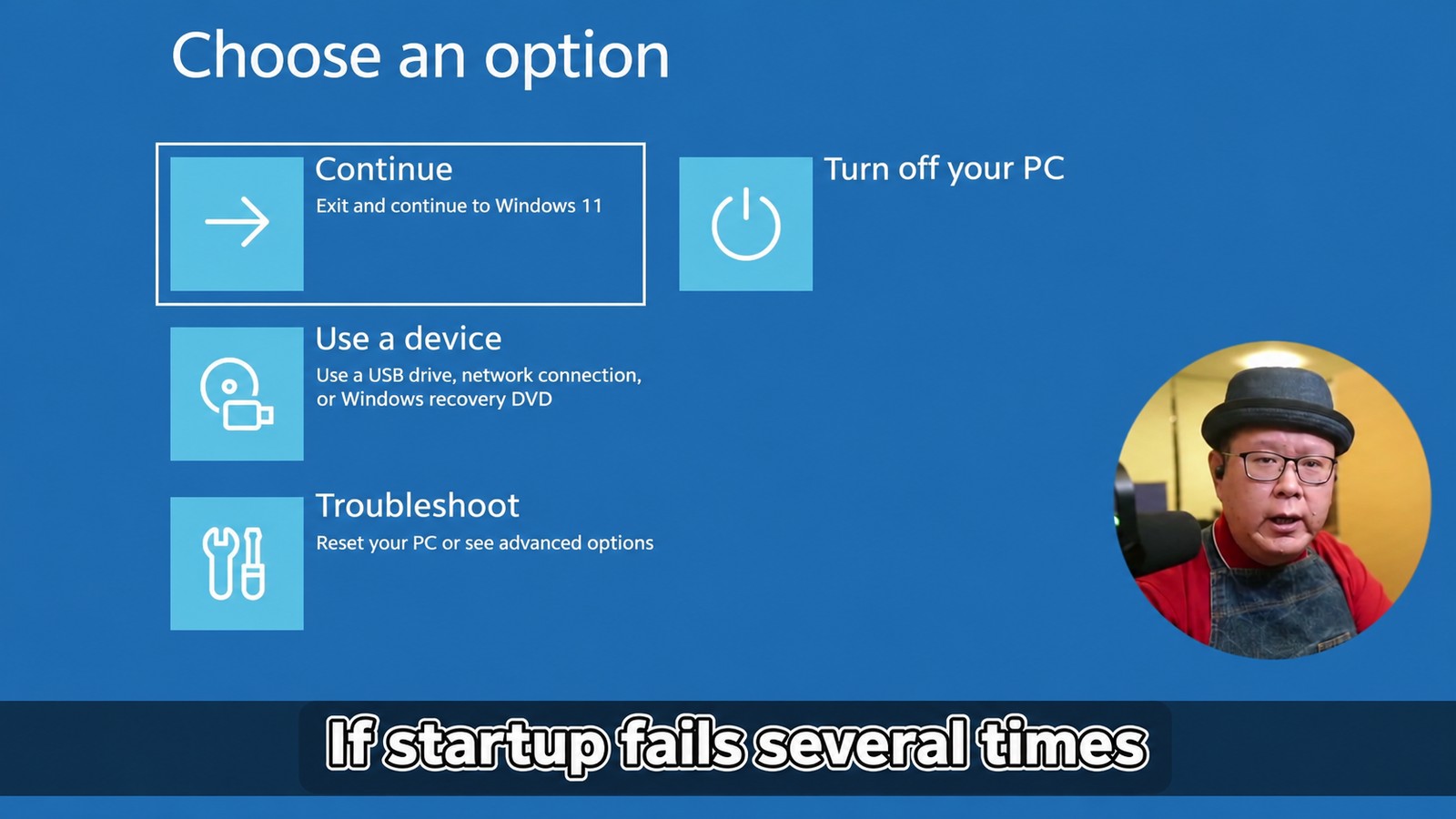
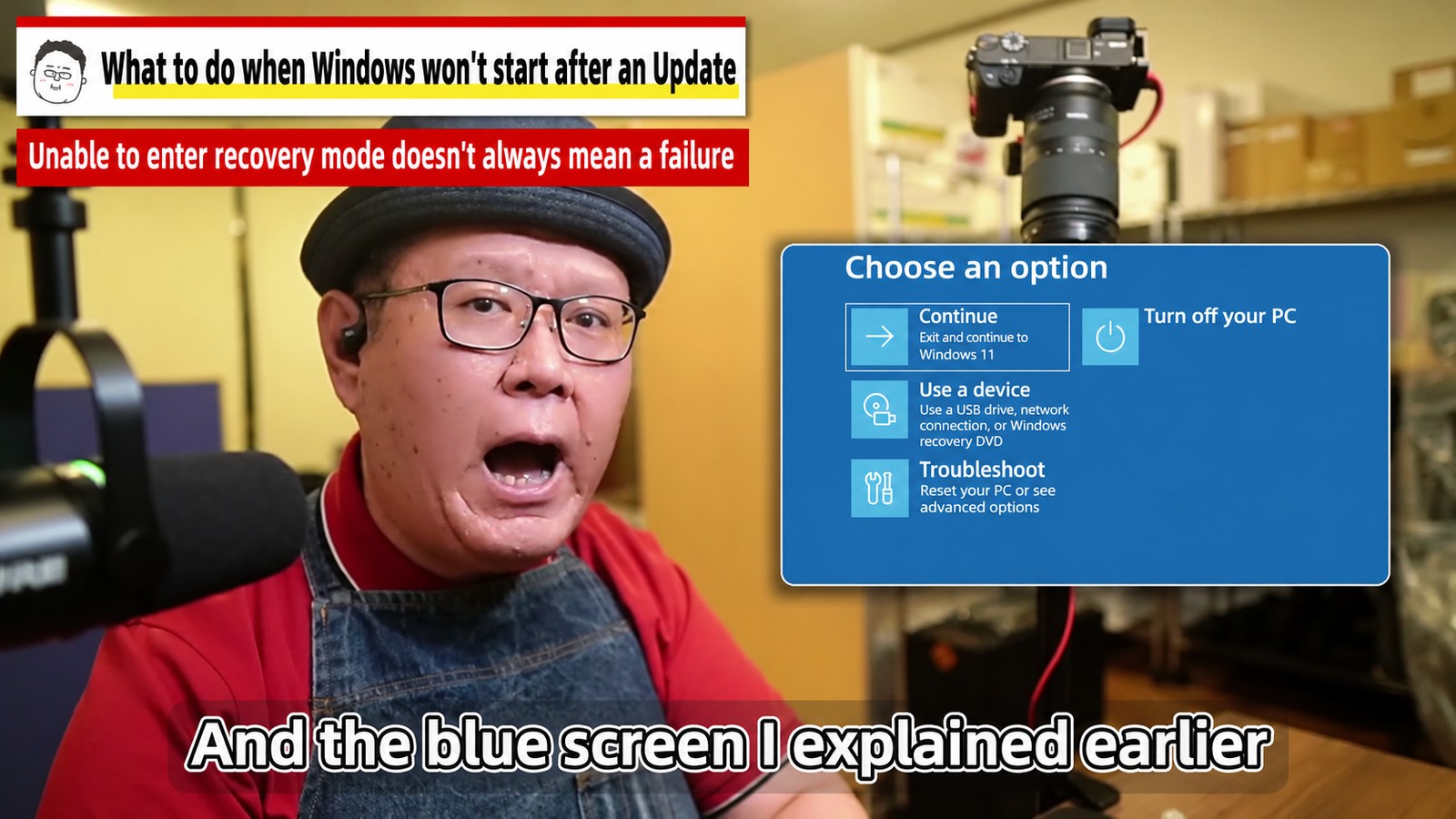
The menu with a blue background is the recovery screen. If your PC fails to start several times, it goes into Automatic Repair and shows this screen. When it appears, select "Troubleshoot" (トラブルシューティング), then open "Advanced options" (詳細オプション).
If it doesn't appear on its own, try the following steps.
- While the manufacturer's logo is displayed, hold down the power button to turn off the PC
- Do this one more time (hold down the power button to turn it off no more than twice)
- When you turn it on the third time, it may go to the recovery screen
If it still doesn't appear, don't keep repeating this. Consult the manufacturer or a repair shop. Don't do this while an update is in progress or if you suspect a hardware failure.
Watch this part in the video (starting at 7:16)
If Your PC Starts, Back Up Your Important Data First
In Advanced options, try three steps, in order, that are not designed to delete your personal files. After each one, if you can restart the PC normally, check just once whether it starts. Don't repeatedly hold down the power button. If the PC starts partway through, you don't need the remaining steps.
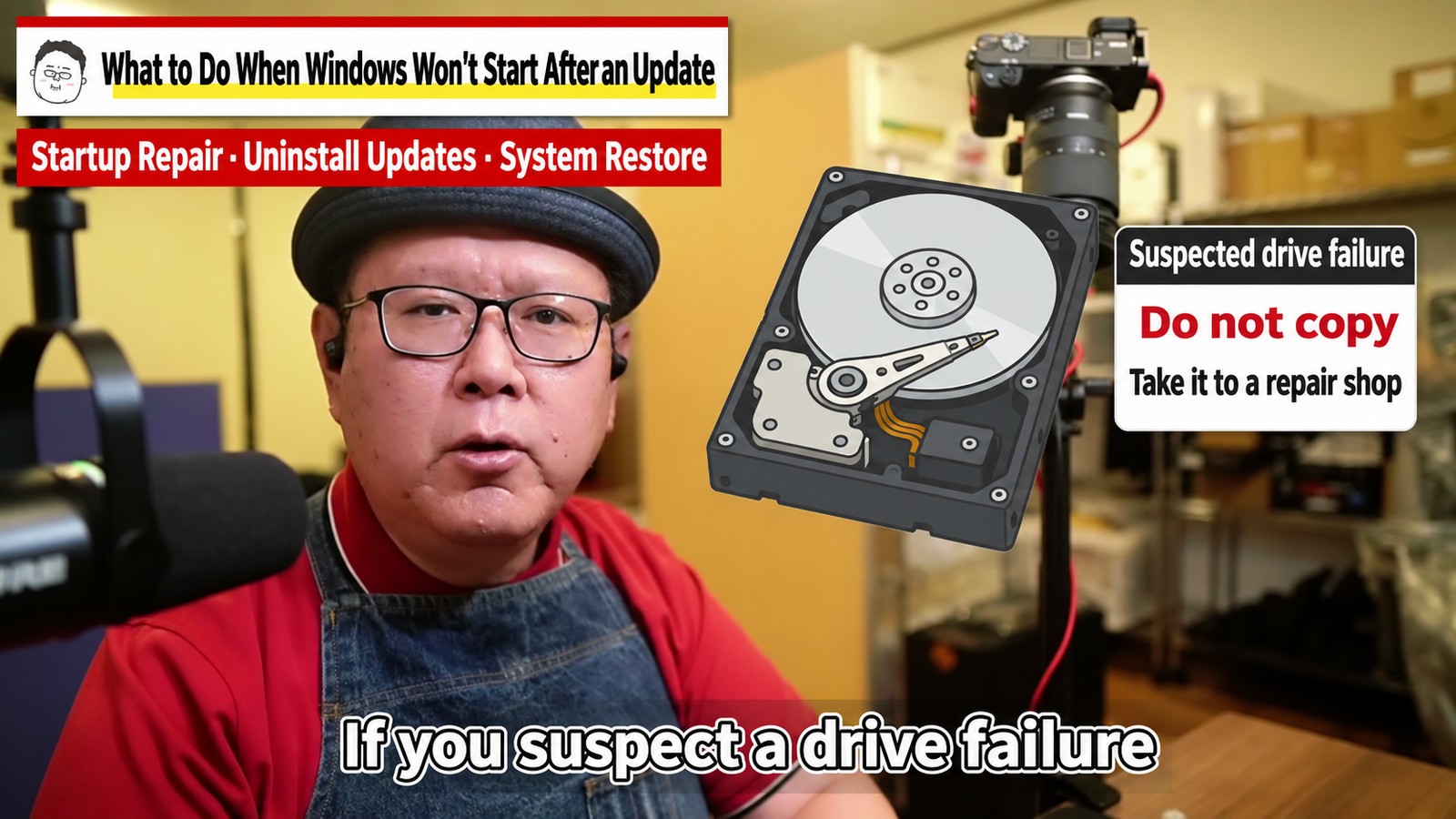
If your PC starts, first back up your important data. If you copy everything at once, the copy may stop partway and you may not be able to get your data out. We recommend prioritizing your most important files and copying them in small batches. If you suspect an SSD or hard drive failure because of unusual noises or other signs, don't start copying; take the PC to a repair shop instead.
Once the recovery process starts, wait until it finishes without turning off the power. For laptops, plug in the AC adapter while working, as long as there is no bulging, abnormal heat, or burning smell.
Watch this part in the video (starting at 8:15)
Step 1: Quick Machine Recovery
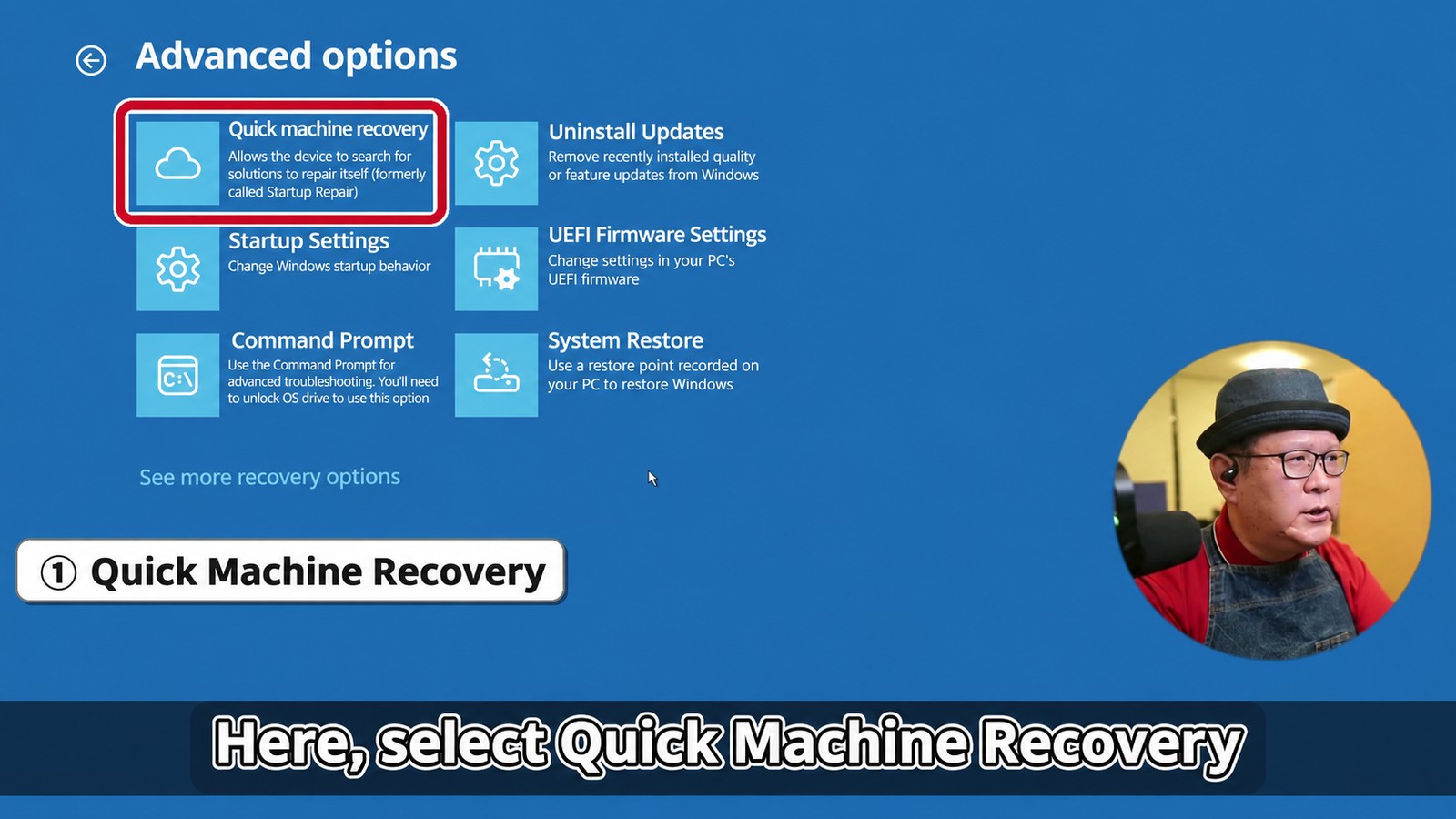
The first step is Quick Machine Recovery (クイックマシンリカバリー). This feature applies fixes that Microsoft provides for widespread startup problems. A fix may not be available. It won't always solve the problem, but try this first. Click the item and wait until it finishes.
Watch this part in the video (starting at 9:48)
Step 2: Uninstall Updates
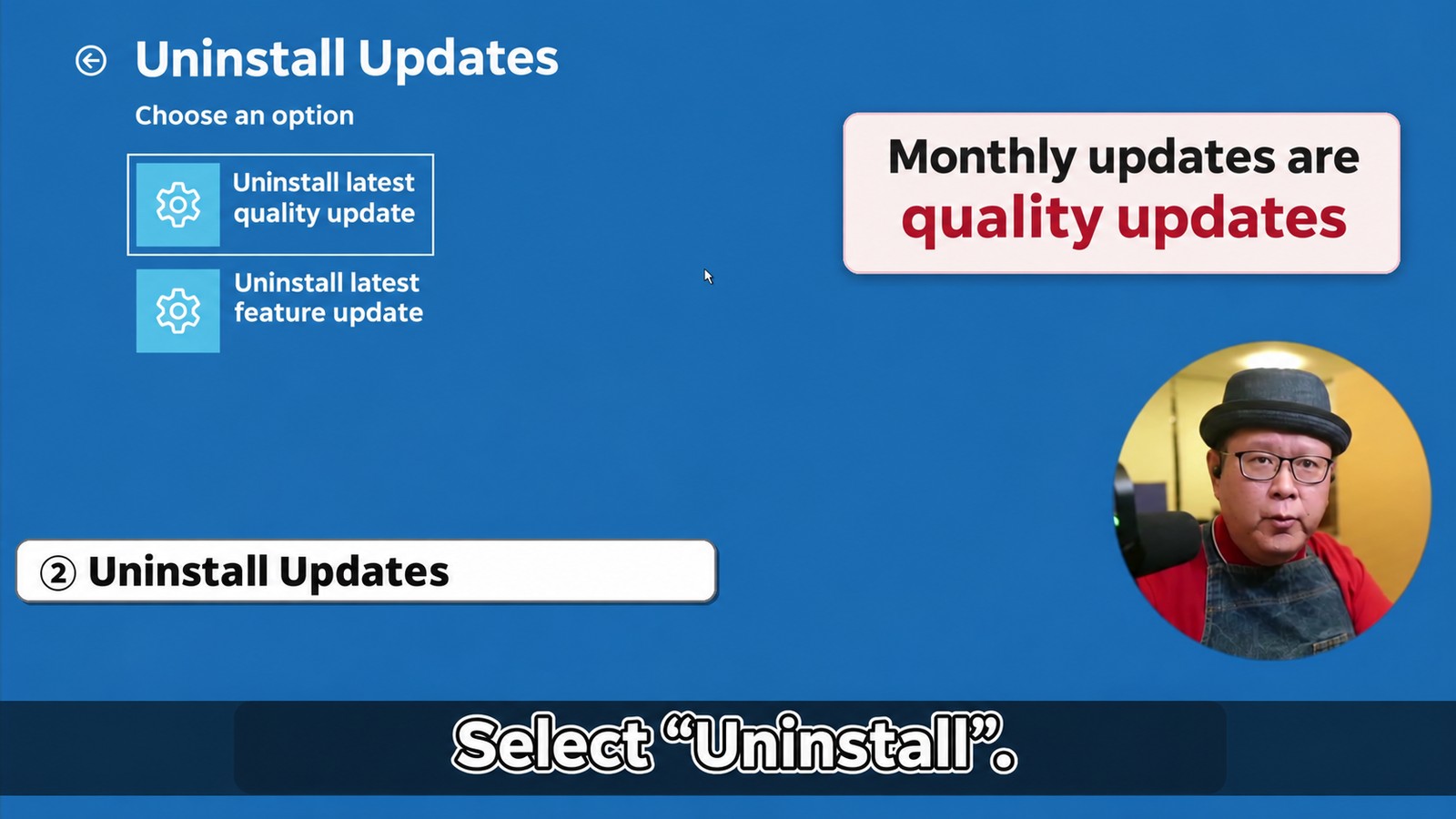
If the first step doesn't work, select "Uninstall Updates" (更新プログラムのアンインストール). To remove the monthly update, choose "Uninstall latest quality update" (最新の品質更新プログラムをアンインストールする). Microsoft states that this does not affect your files or apps.
In some cases, a message has appeared saying the update can't be uninstalled because of a pending update. If that happens, go to the next step.
Watch this part in the video (starting at 10:15)
Step 3: How to Use System Restore
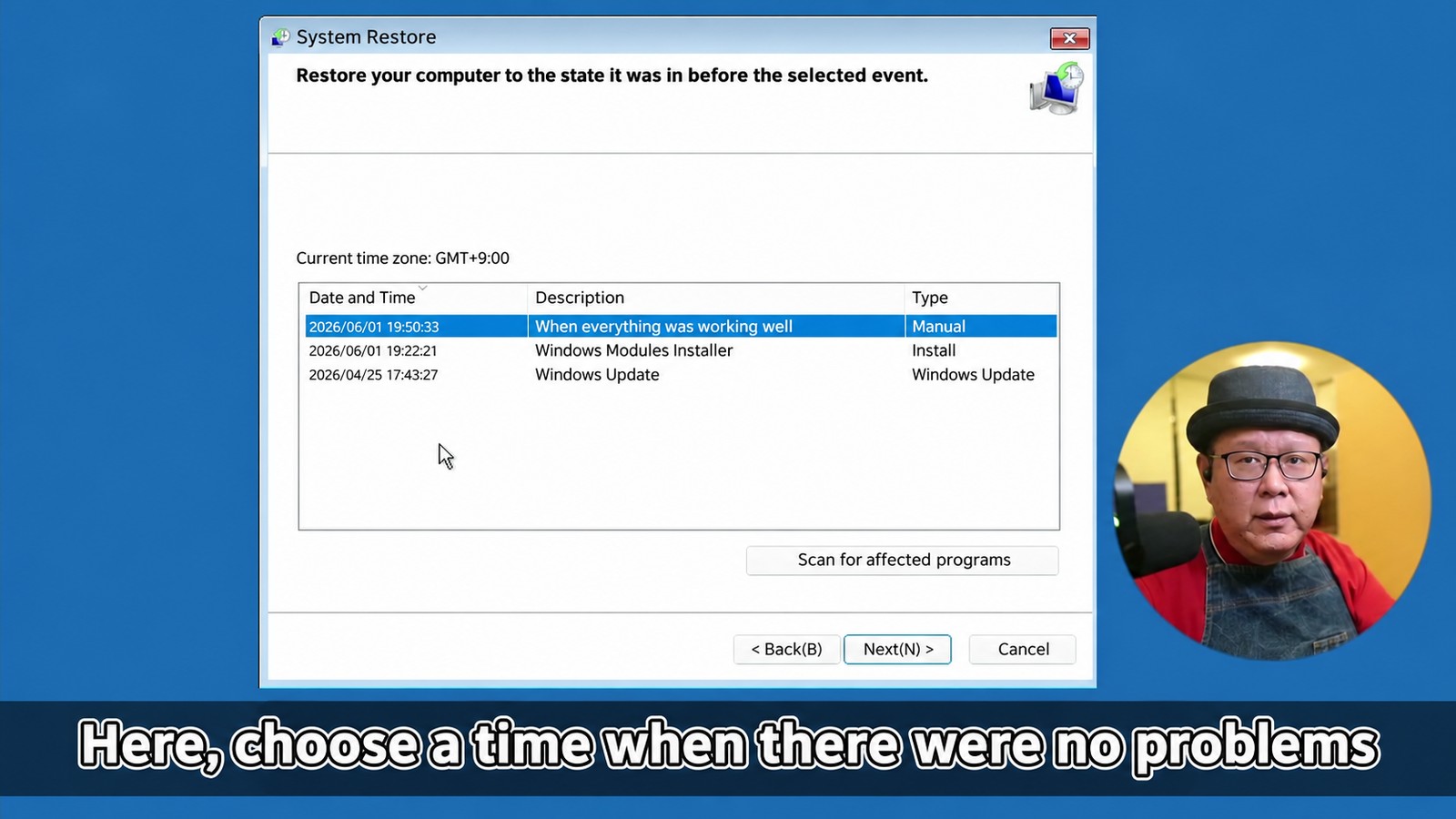
The third step is System Restore (システムの復元). This feature returns Windows settings and other items to the point when a previously saved restore point was created. It can't be used if your PC isn't set up to create restore points.
- Click "System Restore" (システムの復元)
- Click "Next" (次へ)
- From the list of dates, select a day when there were no problems, then click "Next" (次へ)
- Finally, click "Finish" (完了) to start the restore
Apps and updates installed after that point will be undone. Also, "Point-in-time restore" (ポイントインタイム リストア), which has a similar name, is a different feature. It also returns your personal files to an earlier state, so don't choose it.
Watch this part in the video (starting at 10:41)
If the Three Steps Don't Work, Go to a Repair Shop Before Resetting
If your PC still won't start after trying the three steps, we recommend stopping there. The next options are "Reset this PC" (このPCを初期状態に戻す) and "Cloud rebuild" (クラウドから再構築). Cloud rebuild erases your files, such as photos and documents, as well as your apps. It is a different option from "Cloud download" (クラウドからダウンロード), which appears during a reset.
If you have important data, you need to get it off the PC before doing that. Consult the manufacturer or a repair shop. Even if you can't get to the recovery screen, the PC itself isn't necessarily broken. The exact cause can't be known without an inspection.
When you bring your PC in, please bring the PC and its AC adapter. If it is bulging, abnormally hot, or smells burnt, contact the repair shop before bringing it in. Our shop also repairs PCs that won't start and recovers data from them.
Watch this part in the video (starting at 12:01)
If Your PC Starts but the Update Won't Install
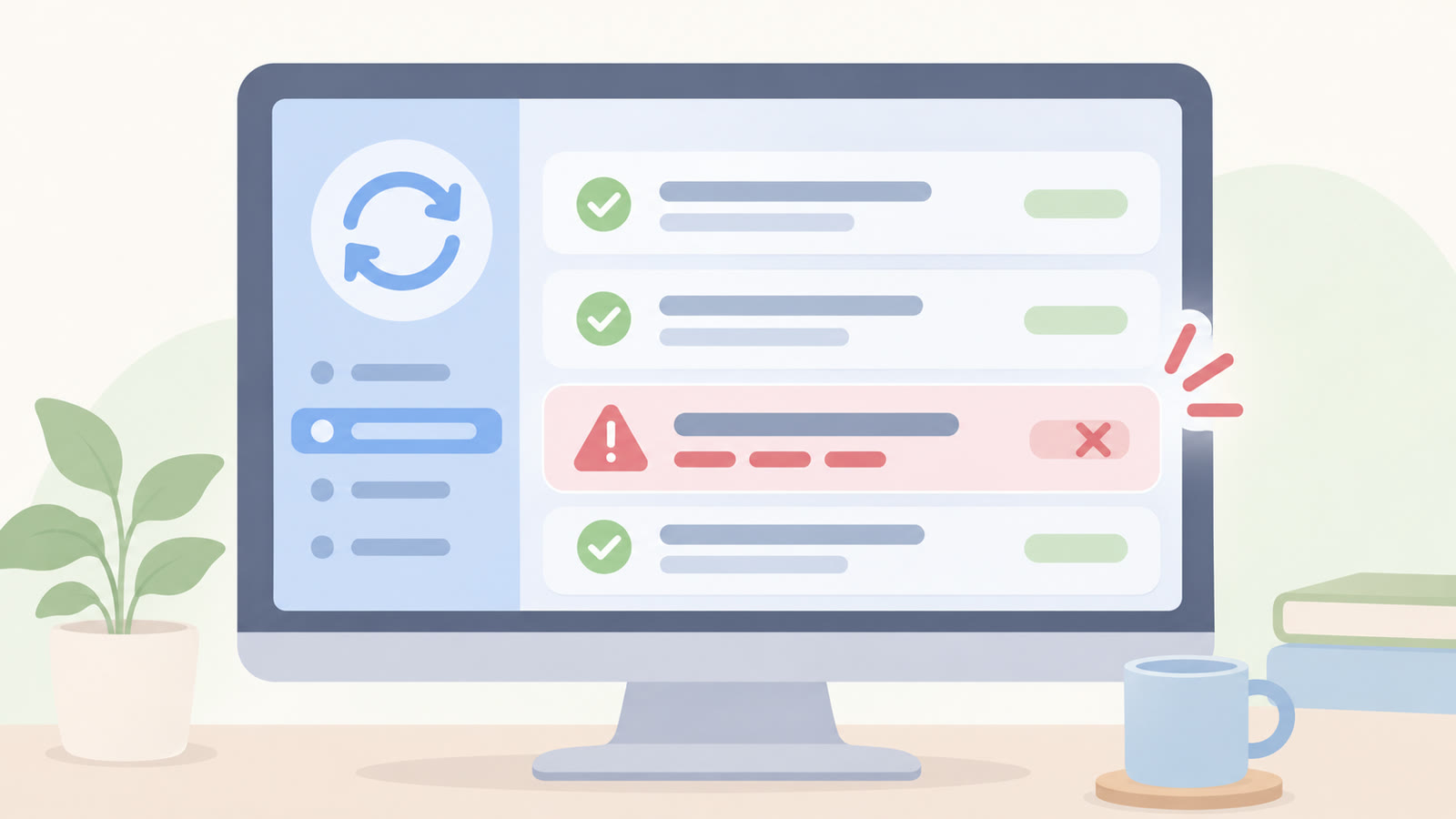
There is also a problem where KB5132061 stops partway through or fails to install with an error. You may see an error code starting with "0x800F." Microsoft has acknowledged this problem, automatically distributed a fix, and marked it as resolved on November 16. Microsoft says that on PCs that have received the fix, the November update will automatically reinstall.
However, the same error can have a different cause. If the update still won't install, try the following in order.
- If an error appears after the process finishes, restart your PC and try just one more time from Windows Update (don't turn off the power while the process is running)
- If it still won't install, right-click the Start button and go to "Settings" (設定) → "Windows Update" → "Update history" (更新の履歴) to check which update failed and its error code
- Write down the error code and check with Microsoft Support
As a general recovery method, there is also "Fix problems using Windows Update" (Windows Updateで問題を修正する) under "Settings" (設定) → "System" (システム) → "Recovery" (回復). This reinstalls Windows while keeping your apps and files, but it isn't guaranteed to work and takes time. If you use it, be sure to back up first. Don't panic and reset your PC just because an update won't install.
Watch this part in the video (starting at 13:28)
Activation Error 0x80041008: Cause and What to Do
The other problem is that Windows activation fails with error 0x80041008. It affects versions other than Windows 11 25H2 and 26H2 for home users. It occurs mainly in business environments that use a system called KMS, when settings or product keys are entered using commands.
PCs that already have KMS settings and don't need additional command operations are said to be unaffected. An out-of-band update was also released on November 13, so the best course is to contact your company's IT administrator. If a home PC shows a message that Windows can't be activated and you don't remember running any commands, there may be a different cause. In that case, the PC needs to be examined.
Watch this part in the video (starting at 16:00)
Summary
- Even if your PC won't start after an update, it isn't necessarily broken. Don't panic and reset it.
- While an update is in progress, wait without turning off the power. If there are unusual noises, bulging, abnormal heat, or a burning smell, stop using the PC and consult the manufacturer, the store where you bought it, or a repair shop.
- On the recovery screen, try Quick Machine Recovery, then Uninstall Updates, then System Restore, in that order.
- If your PC starts partway through, prioritize your important data and back it up in small batches.
- Even if updates worry you, we don't recommend stopping security updates. Backing up and checking your recovery key before updating will give you peace of mind.
Our shop recommends backing up properly and then installing updates as soon as possible. If a problem does occur, consult a repair shop before resetting your PC.
Related repair services: PC won't start / power problems, Data recovery / backup